
Encryption
When you connect to Datafold to query your data in a database (e.g., BigQuery), communications are secured using HTTPS encryption.
IP whitelisting
If access to your data connection is restricted to IP addresses on an allowlist, you will need to manually add Datafold’s addresses in order to use our product. Otherwise, you will receive a connection error when setting up your data connection.
For SaaS (app.datafold.com) deployments, whitelist the following IP addresses:
23.23.71.47
35.166.223.86
52.11.132.23
54.71.177.163
54.185.25.103
54.210.34.216
Note that at any given time, you will only see one of these addresses in use. However, the active IP address can change, so you should add them all to your IP whitelist to ensure no interruptions in service.
Private Link
AWS PrivateLink
AWS PrivateLink allows you to connect Datafold to your databases without exposing data to the internet. This option is available for both Datafold SaaS Cloud and all Datafold Dedicated Cloud options.The following diagram shows the architecture for a customer with a High Availability RDS setup:Setup
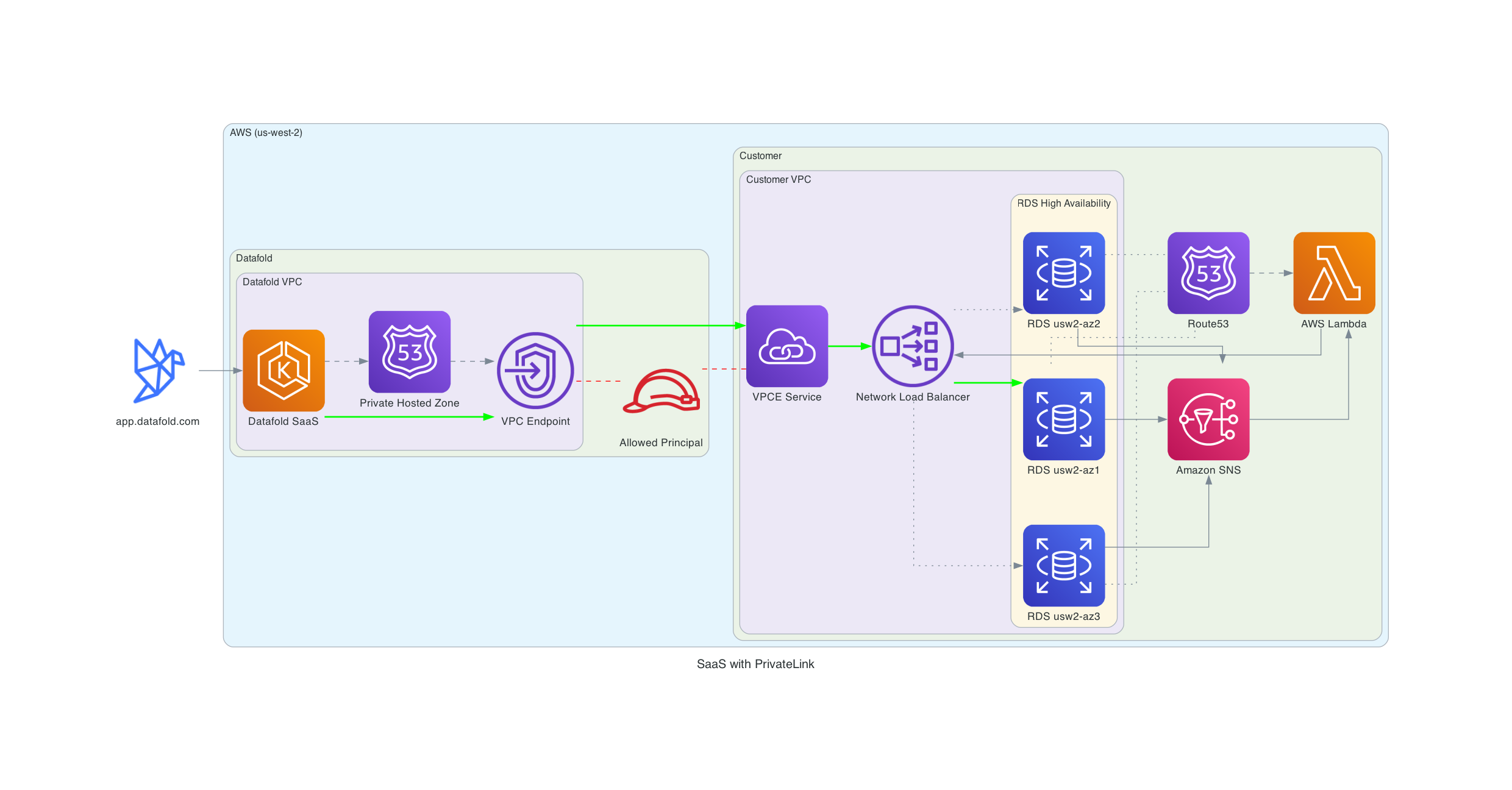
Supported databasesThe following setup assumes you have an RDS/Aurora database you want to connect to. Datafold also supports PrivateLink connections to other databases such as Snowflake, which should only be accessed from your VPC. Please contact support@datafold.com to get assistance with connecting to your specific database. Our support team will send you the following:
- The role ARN to establish the PrivateLink connection.
- Datafold SaaS Cloud VPC CIDR range.
You need to do the following steps:
- Send us the region(s) where your database(s) are located.
- Create a VPC Endpoint Service and NLB.
- The core concepts of this setup are described in this AWS blog: Access Amazon RDS across VPCs using AWS PrivateLink and Network Load Balancer.
- If your databases are HA, please implement the failover mechanics described in the blog.
- A CloudFormation template for inspiration can be found here.
- You’ll need to create a Network Load Balancer that points to your database and a VPC Endpoint Service that exposes the NLB.
- Configure security groups to allow traffic from Datafold’s VPC to your database.
- If your databases are HA (High Availability), implement automatic failover mechanics to ensure the NLB routes to the active database instance.
- For detailed step-by-step instructions, see our AWS PrivateLink Setup Guide.
- Add the provided role ARN as ‘Allowed Principal’ on the VPC Endpoint Service.
- Allow ingress from the Datafold SaaS Cloud VPC.
- Send us the:
- Service name(s), e.g.
com.amazonaws.vpce.us-west-2.vpce-svc-0cfd2f258c4395ad6.
- Availability Zone ID(s) used in the VPCE Service(s), e.g.
use1-az6 or usw2-az3.
- RDS/Aurora hostname(s), e.g.
datafold.c2zezoge6btk.us-west-2.rds.amazonaws.com.
At the end, the database hostname used to configure the data source will be the original RDS/Aurora hostname. But with private DNS resolution, we will resolve the hostname to the VPC Endpoint. Our support team will let you know when everything is set up and you can accept the PrivateLink connection and start configuring the data source.Detailed InstructionsFor comprehensive step-by-step instructions including security group configuration, target group setup, Lambda-based automatic failover for HA setups, and troubleshooting, see our AWS PrivateLink Setup Guide. Cross-Region PrivateLink
Datafold SaaS Cloud supports cross-region PrivateLink for all North American regions. Datafold SaaS Cloud is located in us-west-2. Datafold manages the cross-region networking, allowing you to connect to a VPC Endpoint in the same region as your VPC Endpoint Service. For Datafold Dedicated Cloud customers, deployment occurs in your chosen region. If you need to connect to databases in multiple regions, Datafold also supports this through cross-region PrivateLink.The setup will be similar to the regular PrivateLink setup.Private Service Connect
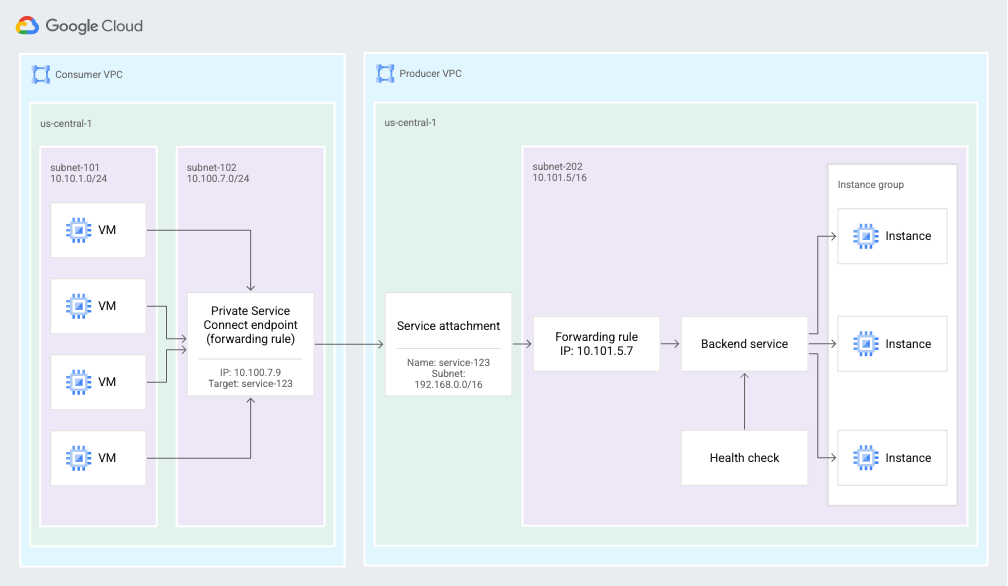
Google Cloud’s Private Service Connect is only available if both parties are in the same cloud region. This option is only available for Datafold Dedicated Cloud customers. The diagram below illustrates how the solution works:The basics of Private Service Connect are available here.Azure Private Link
Azure Private Link is only available if both parties are in the same cloud region. This option is only available for Datafold Dedicated Cloud customers. The diagram below illustrates how the solution works:The basics of Private Link are available here.For Customer-Hosted Dedicated Cloud, achieving cross-tenant access requires using Private Link. The documentation can be accessed here.Connecting to Snowflake or Databricks?Both platforms offload large query results to cloud storage rather than the query engine itself, which usually means a second private endpoint is needed alongside the main account/workspace connection. See the Snowflake and Databricks sections below.
Connecting to Snowflake
Prerequisites
- Your Snowflake account must be on Business Critical Edition or higher. This gates both the account-level Private Link and the internal stage private endpoint.
- Your Azure subscription must be registered with the Azure Storage resource provider before you can connect to a Snowflake internal stage from a private endpoint.
Step 1: Retrieve your Private Link configuration
As ACCOUNTADMIN, run:Send us:
privatelink-pls-id
- Your account URL
- The OCSP URLs in the output (we need these for our firewall and DNS configuration)
Step 2: Enable Private Link for internal stages
Re-run SYSTEM$GET_PRIVATELINK_CONFIG() and send us the ResourceID under the privatelink_internal_stage key.Skipping this step is the most common cause of “connection works, large queries time out.” Without it, there’s no private path for downloading results once they’re written to the internal stage — only the query itself travels over the account endpoint.
Step 3: We create your private endpoints
We’ll create one private endpoint for your account and a separate one for the internal stage, and send you both resource IDs.Step 4: Authorize both endpoints
As ACCOUNTADMIN, authorize each endpoint. They use different functions and can’t both be approved from the Azure portal, since the internal stage’s storage account is Snowflake-owned, not yours.For the account endpoint, SYSTEM$AUTHORIZE_PRIVATELINK also requires a federated token, not just the endpoint resource ID. We’ll generate this token against our own Azure subscription and send it to you along with the resource ID — treat it like a credential (don’t paste it into a shared ticket or channel).For the internal stage endpoint:Step 5: Verify
Network policies and public access
The account endpoint and the internal stage are governed by separate public-access controls:
- Account endpoint — governed by your account-level network policy, if you have one. If so, add Datafold’s private endpoint IP range to the allowed list.
- Internal stage — governed independently, via:
SYSTEM$BLOCK_INTERNAL_STAGES_PUBLIC_ACCESS() — blocks all public access to internal stages. All-or-nothing; no partial IP allowlist.
SYSTEM$BLOCK_INTERNAL_STAGES_PUBLIC_ACCESS_WITH_EXCEPTION('<cidr_or_ip_list>') — same, but with an IP/CIDR allowlist exception. Only available on Azure, not AWS or GCP.
SYSTEM$INTERNAL_STAGES_PUBLIC_ACCESS_STATUS() — check current status.
Let us know which of these (if any) is active so we can confirm whether our private endpoint’s IP range needs to be added explicitly.Connecting to Databricks
Prerequisites
- Workspace on the Premium plan.
- VNet injection and secure cluster connectivity (No Public IP) enabled, for connections from the classic compute plane.
- A dedicated subnet (minimum
/28) for the storage account’s private endpoints — separate from your two standard workspace subnets.
Step 1: Check whether the workspace storage firewall is enabled
By default, a Databricks workspace’s storage account (the one behind the DBFS root and any Unity Catalog workspace catalog) accepts connections from all networks — nothing further is needed for Datafold’s query result downloads to work.If your organization has enabled the storage firewall to block public network access, continue with the steps below.Step 2: Create two private endpoints for Cloud Fetch
Datafold’s driver uses Cloud Fetch to download query results larger than 1 MB directly from your workspace storage account rather than through the SQL warehouse — results are written as Arrow files (up to 20 MB each) and handed to us as presigned URLs. If the storage account is firewalled, Cloud Fetch needs its own private path from Datafold’s VNet.For our source network, create two private endpoints to your workspace storage account, using two different Target sub-resource values:Create these in a resource group other than your workspace’s managed resource group — Azure rejects private endpoints created inside the managed resource group with a deny assignment error. If you hit that error in your own resource group instead, your workspace may predate the current managed-resource-group permissions model; contact your Databricks account team.
Step 3: Approve the endpoints
Go to the workspace storage account (inside the managed resource group, named dbstorage...) → Networking → Private endpoint connections, and confirm both endpoints show Approved. They may auto-approve, or need manual approval.Cross-tenant approvalDatafold’s private endpoints are created from our own Azure subscription, in our own tenant. The standard “Connect to an Azure resource in my directory” flow assumes same-tenant access — we’ll connect using the resource ID method instead. Confirm with your Azure team that cross-tenant private endpoint approval is enabled in your environment before starting.
Serverless SQL warehouses
If you use serverless SQL warehouses, you’ll also need a private endpoint rule for the storage account in your workspace’s Network Connectivity Config (NCC), in addition to the VNet-based private endpoints above.Alternatives to a private endpoint
If a private endpoint isn’t feasible on your side:
- Route Cloud Fetch through a proxy — configure
UseCFProxy, CFProxyHost, CFProxyPort, CFProxyAuth, CFProxyUID, and CFProxyPwd on the driver. This is a separate proxy configuration from the main warehouse connection.
- Disable Cloud Fetch entirely with
EnableQueryResultDownload=0. Results then come back through the SQL warehouse instead of directly from storage — noticeably slower on large results, so treat this as a fallback rather than a default.
Also send us your SQL warehouse hostname, and confirm whether front-end Private Link (the connection Datafold uses to submit queries) is already in place for the workspace — that’s a separate endpoint from the storage path described here.Before you approve the first endpoint
Attaching a private endpoint to an Azure Storage account causes Azure to create a public CNAME redirecting the storage hostname to *.privatelink.blob.core.windows.net (or the dfs equivalent). If you already run private DNS zones for blob.core.windows.net or dfs.core.windows.net, enable “Fallback to Internet” on those zones before approving the first endpoint — otherwise this can break DNS resolution for other, unrelated storage accounts in your environment that still rely on the public endpoint.This applies whether the private endpoint you’re approving is for Snowflake’s internal stage or a Databricks workspace storage account — both sit on Azure Blob Storage under the hood.Troubleshooting
Connection succeeds, but queries with any real amount of data time out or hang:
This almost always means the account/workspace endpoint is set up correctly, but the storage-side path isn’t. For Snowflake, check that ENABLE_INTERNAL_STAGES_PRIVATELINK is set and the stage endpoint is authorized. For Databricks, check that both the dfs and blob private endpoints exist and are approved. A Snowflake driver error like Timeout waiting for the download of #chunk0 is a direct symptom of this.Azure rejects the private endpoint with a deny assignment error:
You’re likely creating it inside the Databricks-managed resource group. Create it in a separate resource group instead, or contact your Databricks account team if the error persists.Other resolvers or clients in your Azure environment start failing DNS lookups after you approve a private endpoint:
This is the public CNAME behavior described above. Enable “Fallback to Internet” on your private DNS zone for the affected privatelink.*.core.windows.net zone.
VPC Peering (SaaS)
VPC Peering is easier to set up than Private Link, but a drawback is that both networks are joined and the IP ranges must not overlap. For Datafold SaaS Cloud, this setup is an AWS-only option.
The basics of VPC peering are covered here.
To set up VPC peering, please contact support@datafold.com and provide us with the following information:
- AWS region where your database is hosted.
- ID of the VPC that you would like to connect.
- CIDR of the VPC.
If there are no address collisions, we’ll send you a peering request and CIDR that we use on our end, and whitelist the CIDR range for your organization. You’ll need to set up routing to this CIDR through the peering connection.
If you activate DNS on your side of the peering connection, you can use the private DNS hostname to connect. Otherwise, you need to use the IP.
VPC Peering (Dedicated Cloud)
VPC Peering is a supported option for all cloud providers, both for Datafold-hosted and customer-hosted deployments. Basic information for each cloud provider can be found here:
VPC vs VNetWe use the term VPC across all major cloud providers. However, Azure calls this concept a Virtual Network (VNet).
SSH Tunnel
To set up a tunnel, please contact our team at support@datafold.com and provide the following information:
- Hostname of your bastion host and port number used for SSH service.
- Hostname of and port number of your database.
- SSH fingerprint of the bastion host (optional).
We’ll get back to you with:
- SSH public key that you need to add to
~/.ssh/authorized_hosts.
- IP address and port to use for data connection configuration in the Datafold application.
IPSec tunnel
Please contact our team at support@datafold.com for more information.