
NOTEOkta SSO is available for both SaaS and dedicated cloud installations of Datafold.
Create Okta App Integration
INFOCreating an App Integration in Okta may require admin privileges.
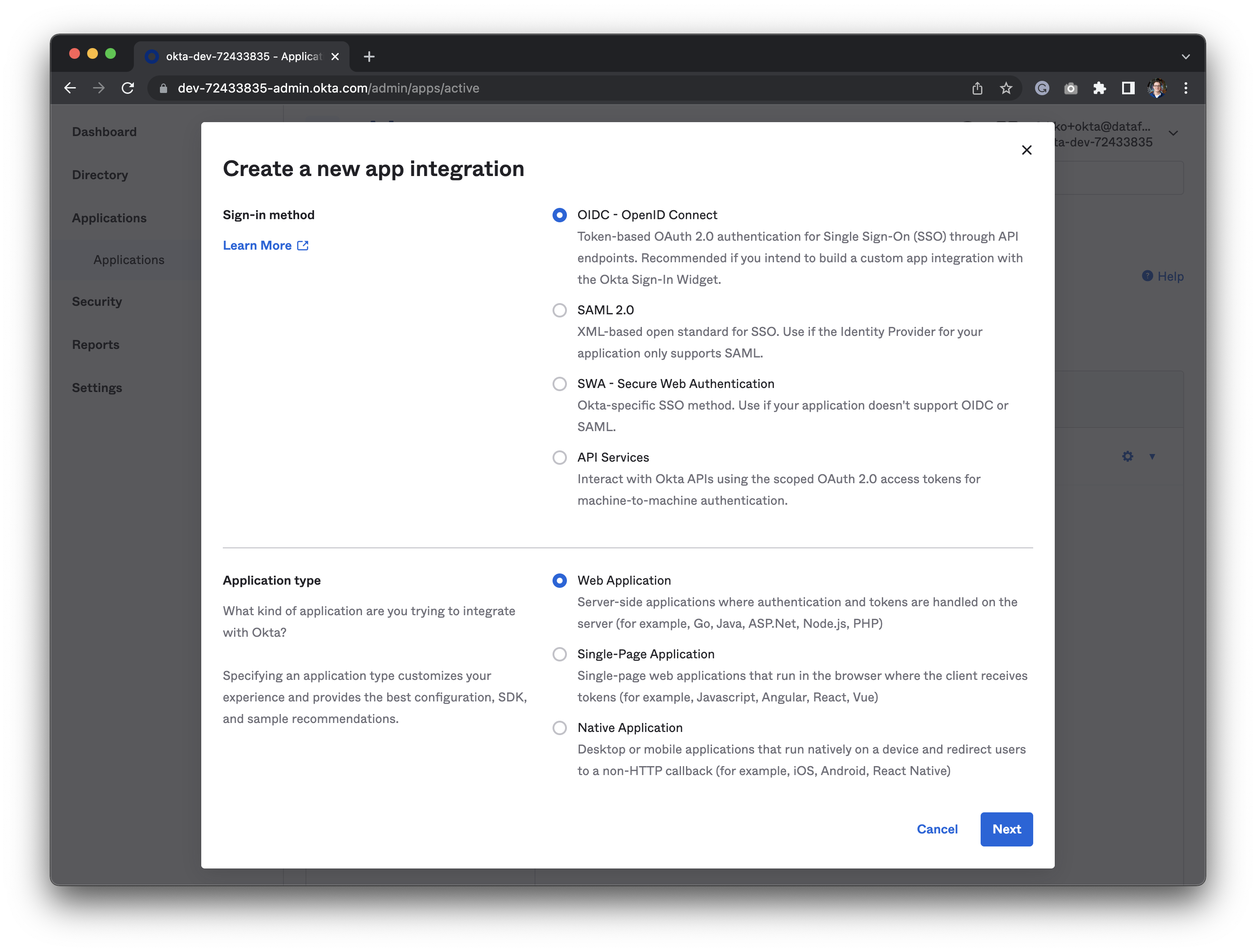
- App integration name: A name to identify the integration. We suggest you use
Datafold. - Grant type: Should be set to
Authorization codeautomatically. - Sign-in redirect URI:
- SaaS
- Dedicated cloud installations of Datafold
The redirect URL should be
https://<your Datafold host>/oauth/okta/client_id, where client_id is the Client ID of the configuration and <your Datafold host> is the host you log in to (for example app.datafold.com, eu.datafold.com, or your dedicated hostname).- Sign-out redirect URIs: Leave this empty.
- Trusted Origins: Leave this empty too.
- Assignments: Select
Skip group assignment for now. Later you should assign the correct groups and users. - Click “Save” to create the app integration in Okta.
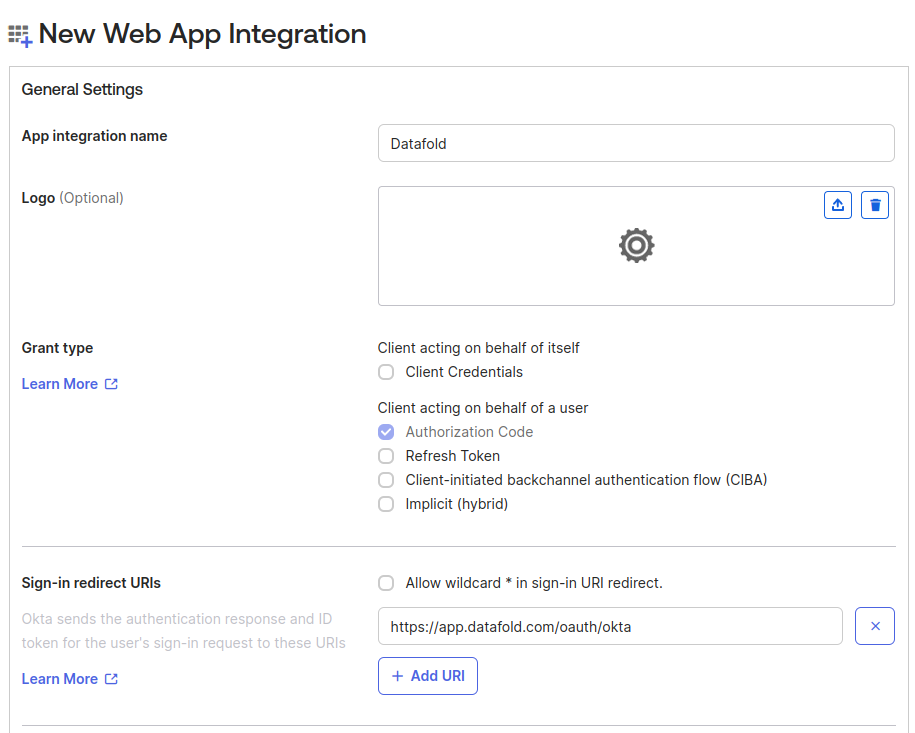
- Edit “General settings”
- Scroll down to the Login section
- Update the Sign-in redirect URI. See above for details.
- Click “Save” to persist the changes.
Set Up Okta-initiated login
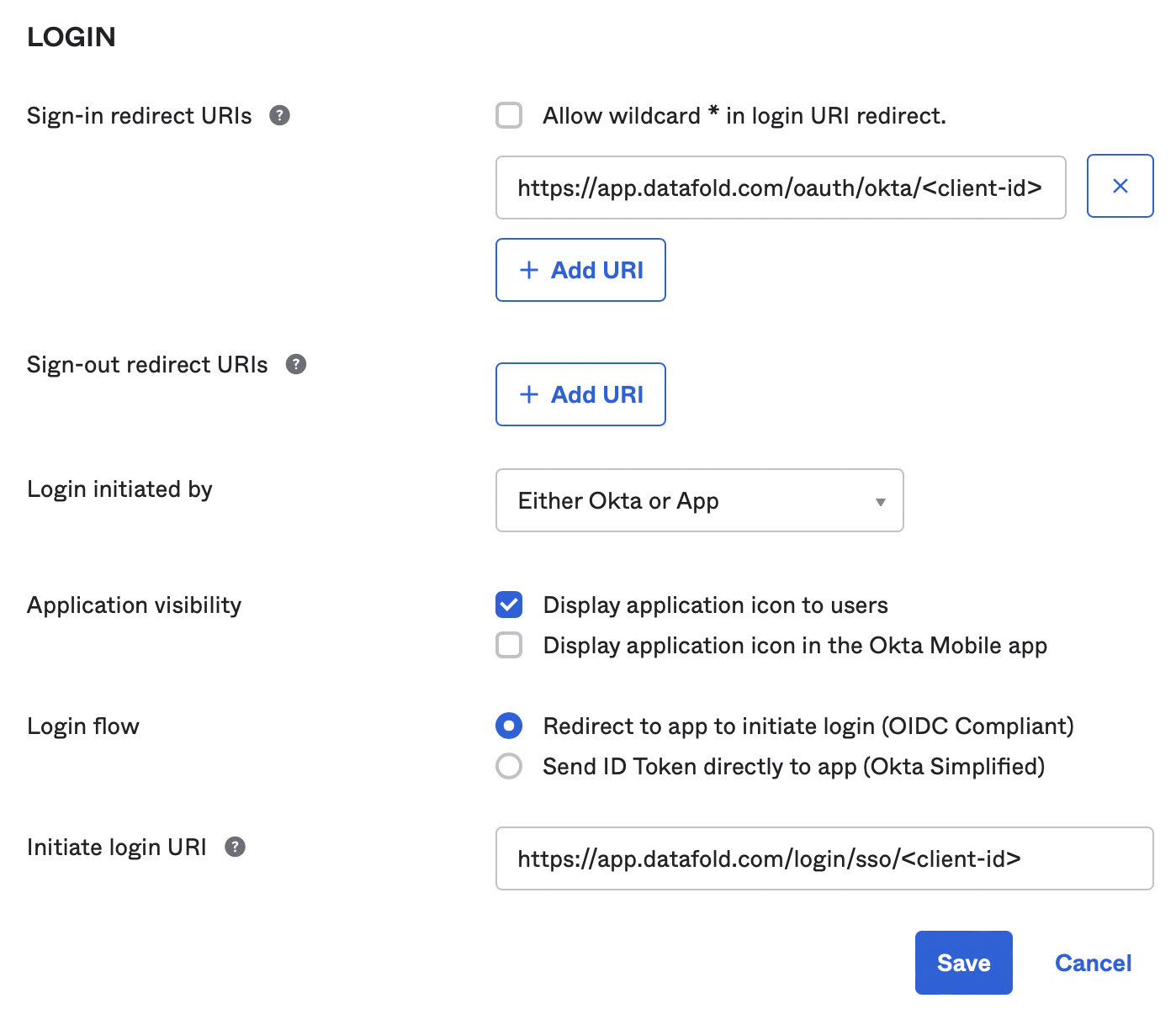
This step is optional and should be done at the discretion of the Okta administrator. Users in your organization can log in to the application directly from the Okta end-user dashboard. To enable this feature, configure the integration as follows:- Edit “General settings”
- Set Login initiated by to
Either Okta or App. - Set Application visibility to
Display application icon to users. - Set Login flow to
Redirect to app to initiate login (OIDC Compliant). - Set Initiate login URI:
- SaaS
- Dedicated cloud installations of Datafold
https://<your Datafold host>/login/sso/client-id?action=desired_action(for exampleapp.datafold.com)- Replace
client-idwith the Client ID of the configuration, and - Replace
desired_actionwithsignupif you enabled users auto-creation, orloginotherwise.
Configure Okta in Datafold
To finish the configuration, create an Okta integration in Datafold. To complete the integration in Datafold, create a new integration by navigating to Settings → Integrations → SSO → Add new integration → Okta.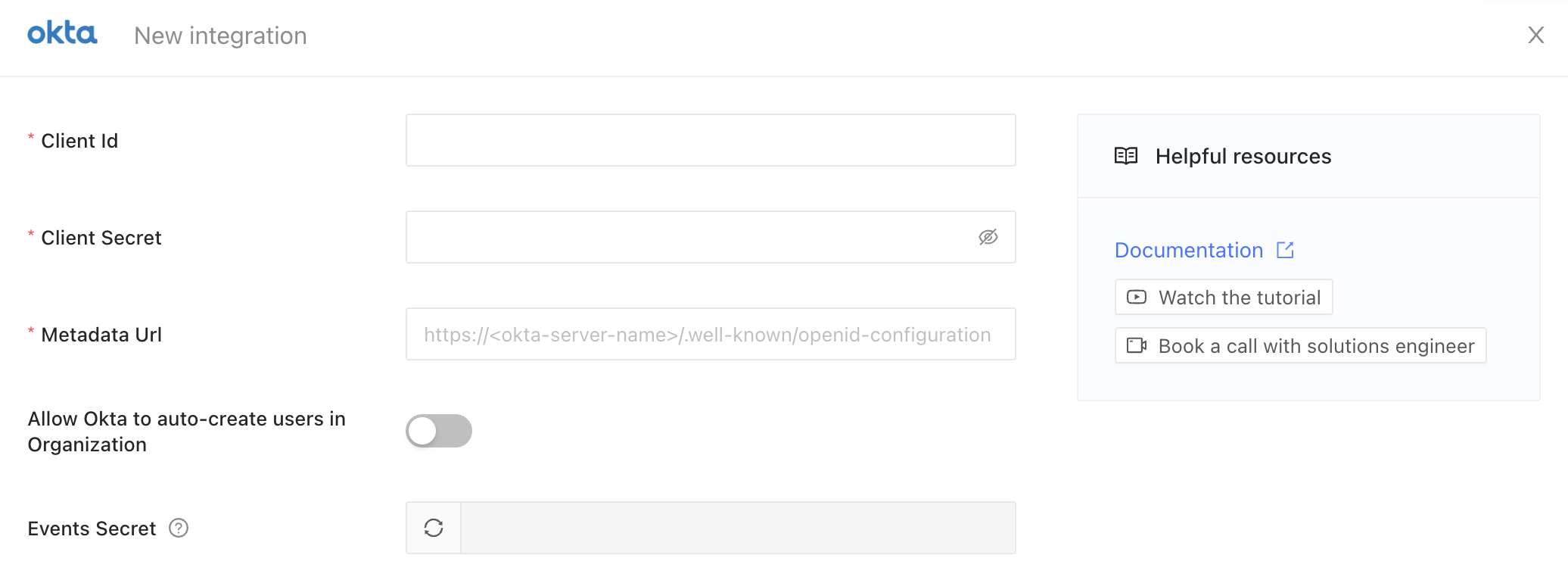
- Paste in your Okta Client Id and Client Secret.
- The Metadata Url of Okta OAuth server is
https://<okta-server-name>/.well-known/openid-configuration, replaceokta-server-namewith the name of your Okta domain. - If you’d like to auto-create users in Datafold that are authorized in Okta, enable the Allow Okta to auto-create users in Organization switch.
- Finally, click Save.
Synchronize state with Datafold [Optional]
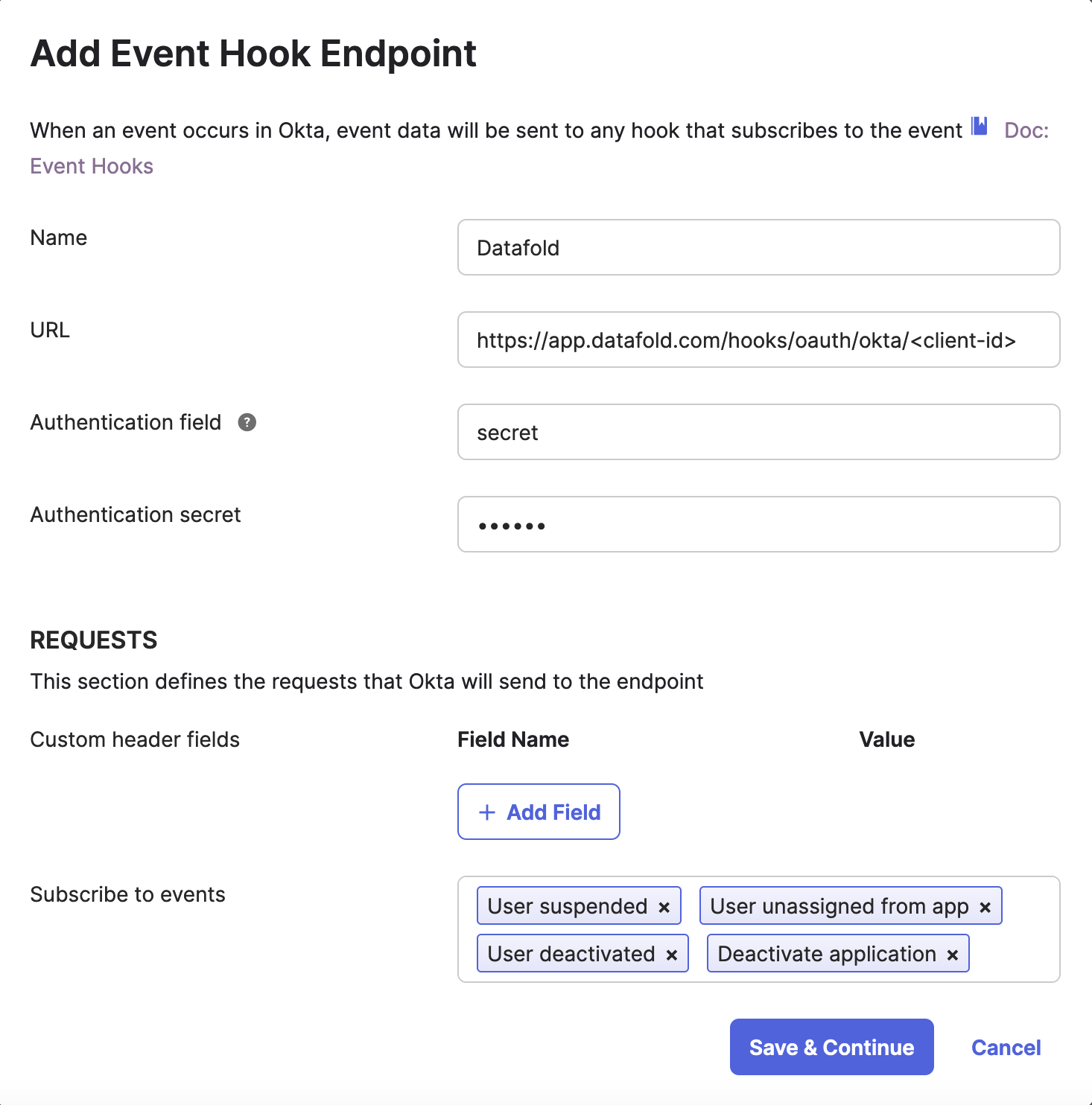
This step is essential if you want to ensure that users from your organization are automatically logged out when they are unassigned or deactivated in Okta.- Navigate to Okta Admin panel → Workflow → Event Hooks
- Click Create Event Hook
- Set Name to
Datafold - Set URL to
https://<your Datafold host>/hooks/oauth/okta/<client-id>(for exampleapp.datafold.com) - Set Authentication field to
secret - Go to Datafold and generate a secret token in Settings → Integrations → SSO → Okta. Click the Generate button, copy it by using the Copy button and click Save. Use the pasted code in the Authentication secret field in Okta.

- In Subscribe to events add events:
User suspended,User deactivated,Deactivate application,User unassigned from app - Click Save & Continue
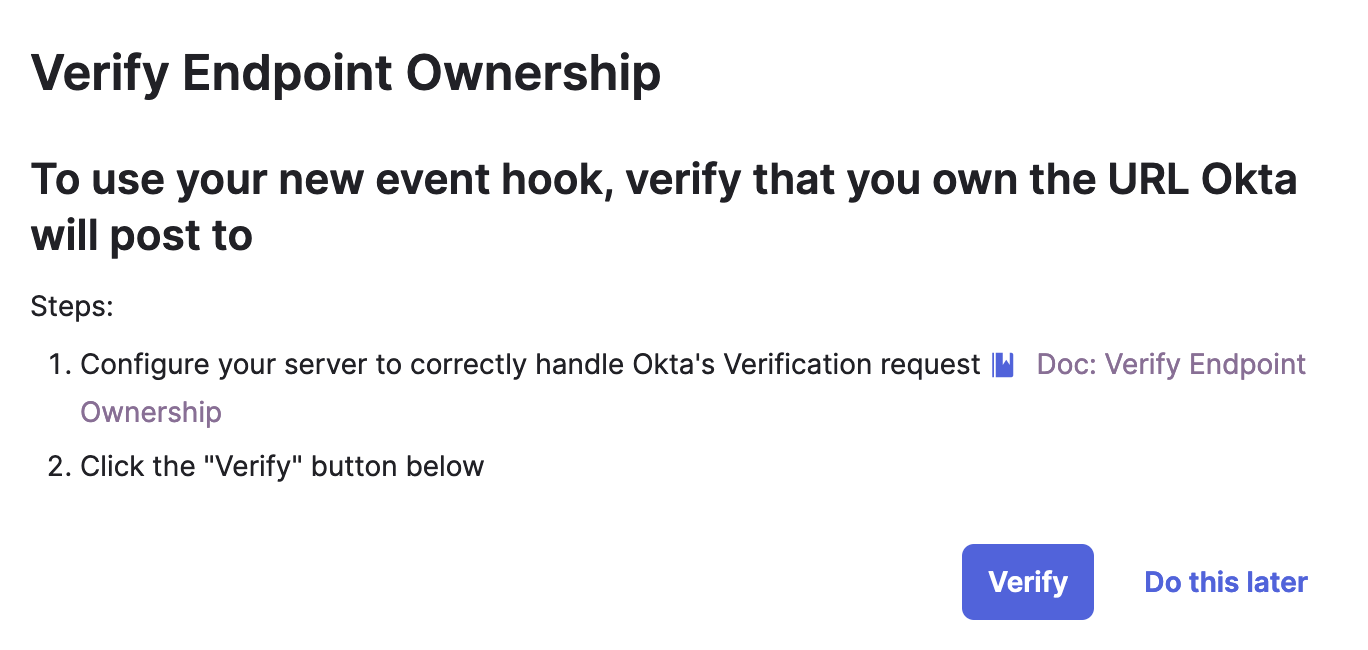
- If the verification is successful, you have completed the setup.
Testing the Okta integration
- SaaS
- Dedicated cloud installations of Datafold
- Visit your Datafold host (for example https://app.datafold.com)
- Type in your email and wait up to five seconds.
- The Okta button should switch from disabled to enabled.
- Click the Okta login button.
- The browser should be redirected to your Okta domain, authenticate the user there and be redirected back to the Datafold application.
support@datafold.com.