
BI Tools integrations are enabled per organization for migration projects. Ask your Datafold contact or support@datafold.com to turn them on.
Requirements
- The workspaces to sync are on Power BI Premium or Fabric capacity. The Fabric API exports definitions only from such workspaces.
- The service principal has the Contributor, Member, or Admin role in each workspace to sync. Exporting a definition needs read and write access to the item.
- Datafold does not need Power BI admin rights or the admin API tenant settings.
1. Create a service principal
1
Register an application
In the Microsoft Entra admin center, register a new application: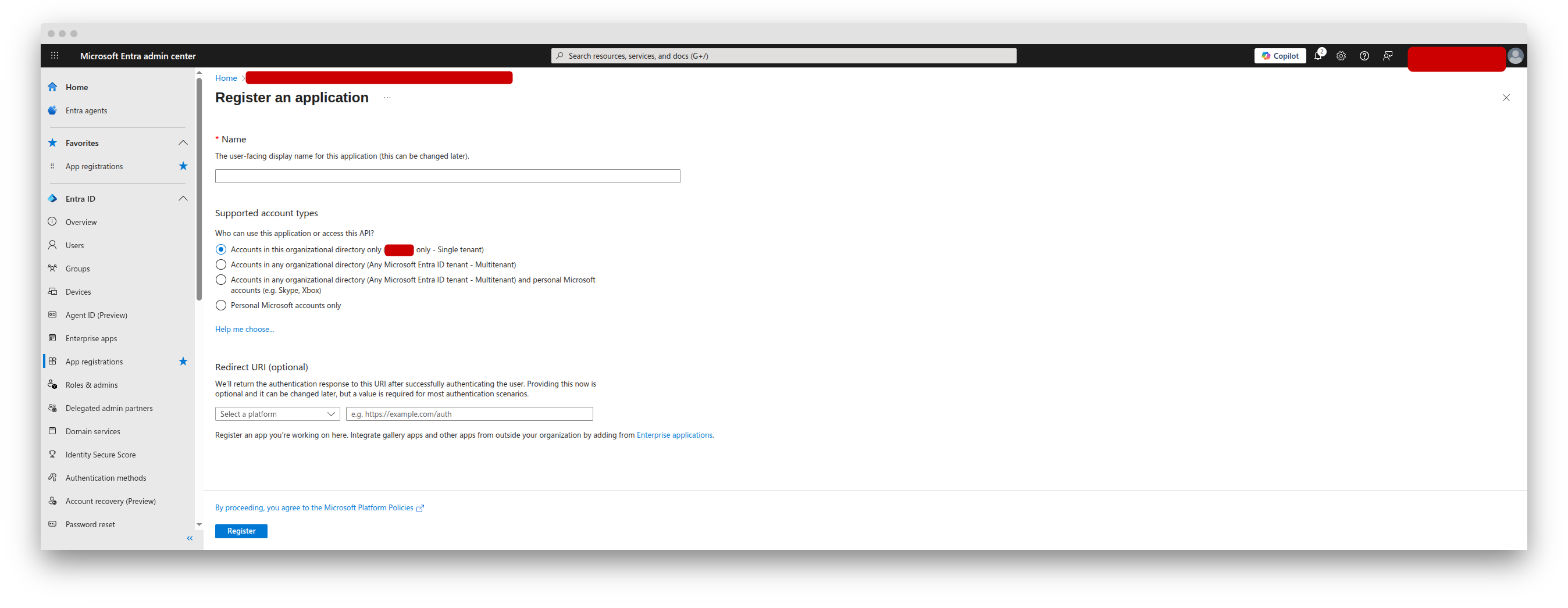
- Name:
Datafold Power BI(or similar) - Supported account types: Accounts in this organizational directory only
- Redirect URI: leave it blank
2
Create a client secret
In the application, open Certificates & secrets, click New client secret, and choose an expiration period. Copy the secret’s Value at once: Entra shows it only once.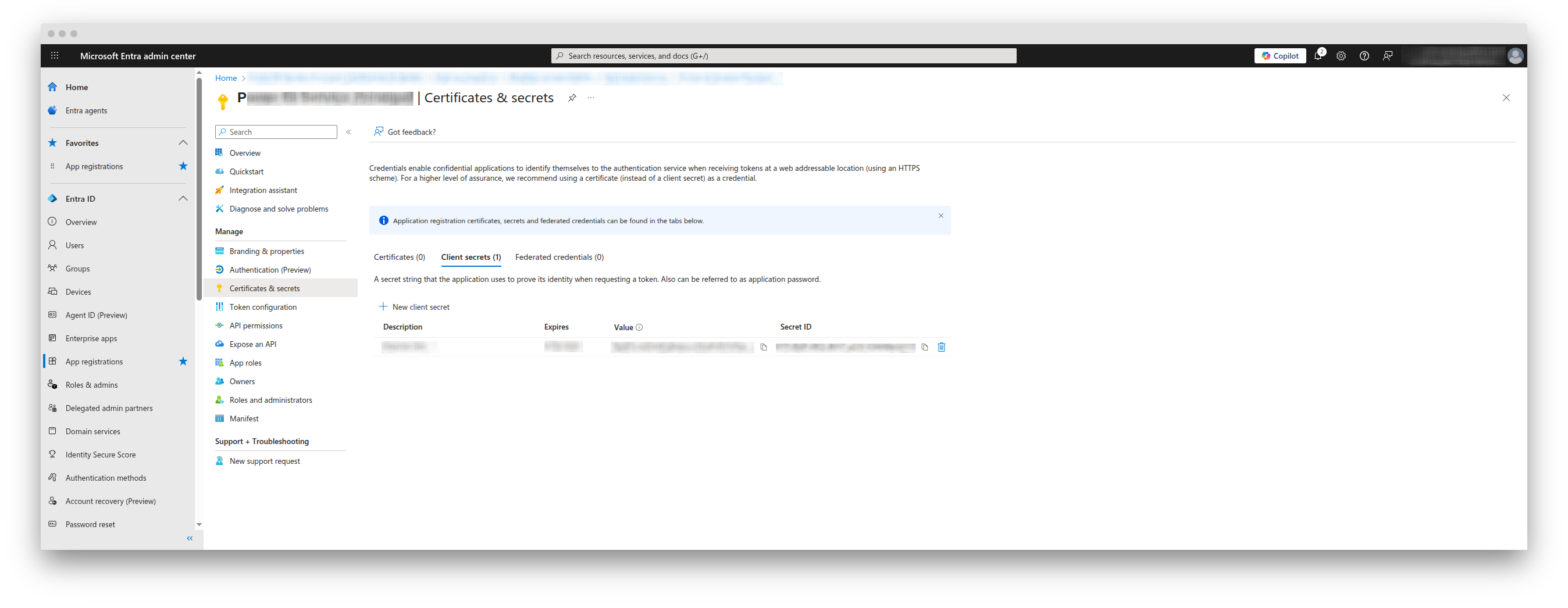
3
Add it to a security group
Create a security group (for example, 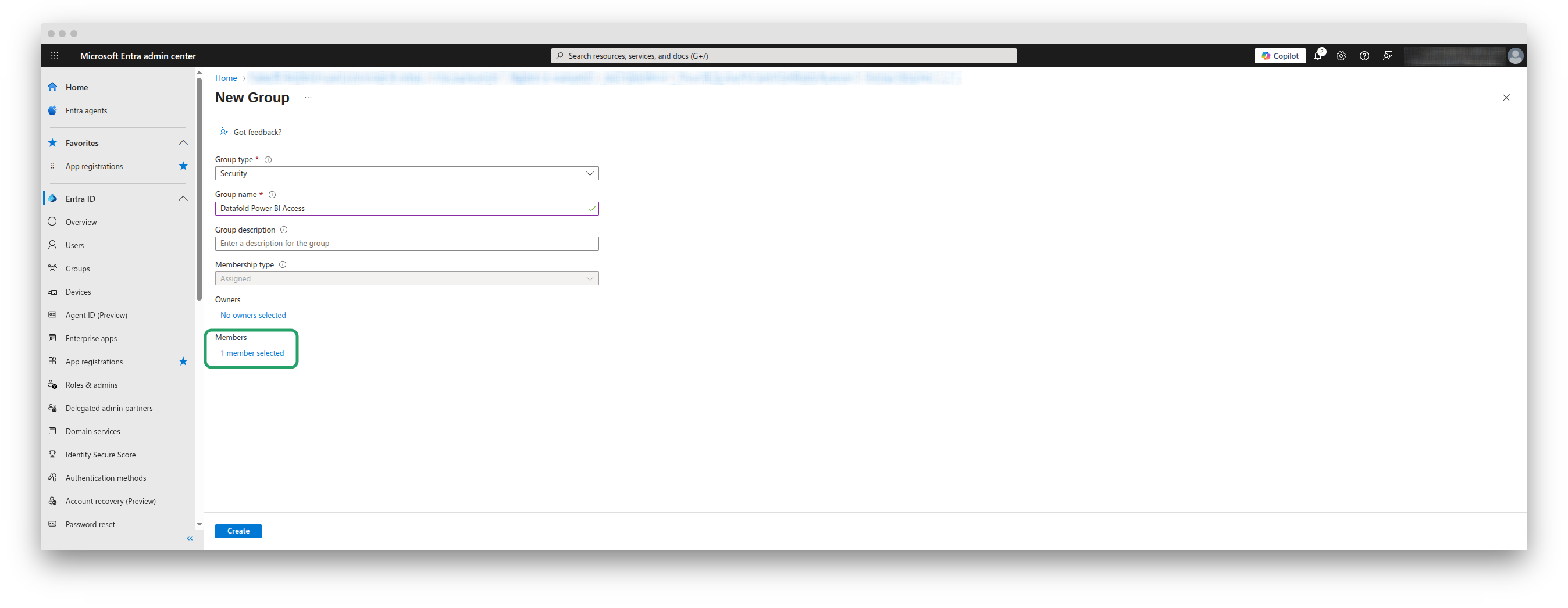
Fabric API service principals) and add the application as a member. You use this group to allow the service principal in the tenant setting below.4
Allow service principals to call Fabric APIs
In the Fabric admin portal, open Tenant settings → Developer settings. Turn on Service principals can call Fabric public APIs, and apply it to the security group (or to the whole organization).
5
Add it to each workspace
In each workspace to sync, open Manage access and add the application with the Contributor role or higher.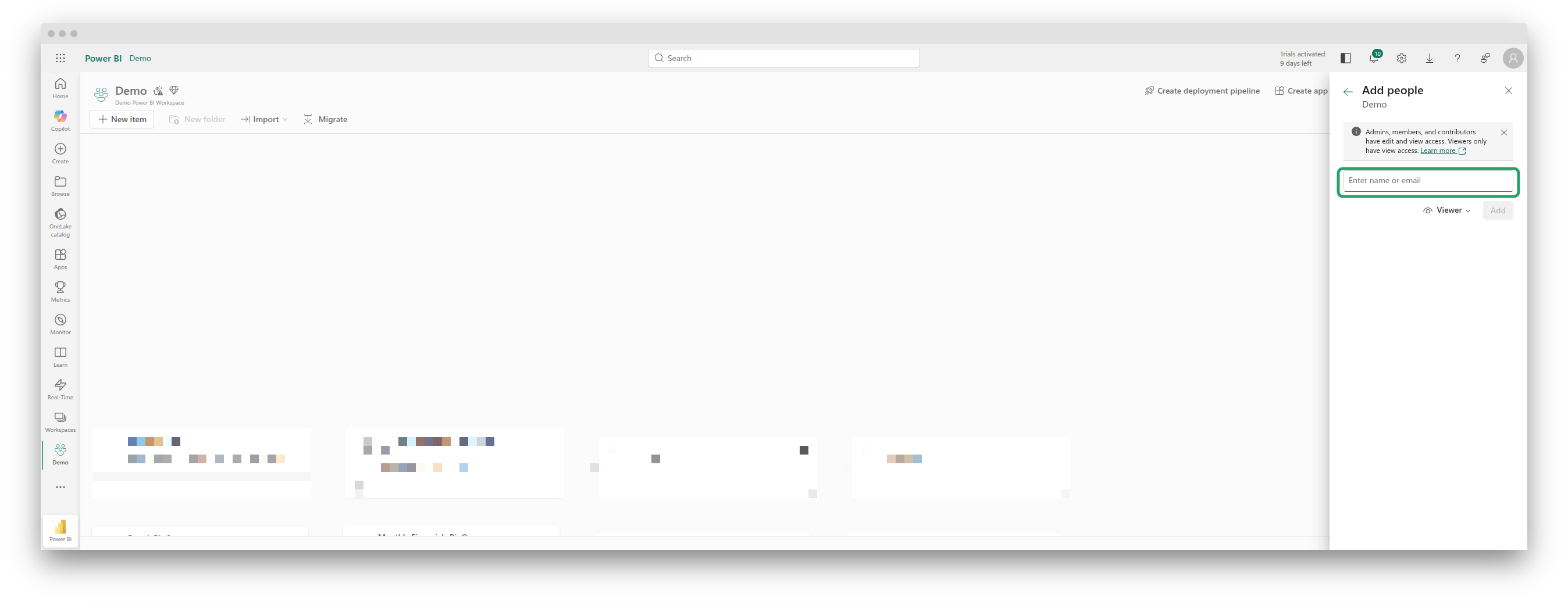
2. Add the integration in Datafold
Go to Settings → Integrations → BI Tools, click Add new integration, and choose Power BI. Fill in the form:- Tenant ID: the directory (tenant) ID.
- Client ID: the application (client) ID of the service principal.
- Client secret: the secret value from step 1.
- Workspaces: the workspaces to sync. When the credentials are filled in, click Load workspaces to list the workspaces that the service principal is a member of, then pick them. You can also type a workspace name or ID and press Enter. The list is required: a tenant can hold thousands of workspaces.
3. Run a sync
Click Sync now. When the sync finishes, open the pull request from the Latest sync panel, then add the mappings for the warehouse connections that the sync found.Troubleshooting
- Service principal sign-in failed: check the tenant ID, client ID, and secret, and that the secret has not expired.
- The Fabric API refused the service principal: check that the tenant setting Service principals can call Fabric public APIs includes the service principal’s security group. Tenant setting changes can take up to 15 minutes to apply.
- The Fabric API is not reachable from Datafold: check that your network allows Datafold to reach
api.fabric.microsoft.comandapi.powerbi.com. - Not visible to the service principal: add the service principal to the workspace with the Contributor role or higher.
- The definition export did not finish: the workspace may not be on Premium or Fabric capacity, or a large model took too long to export. Run the sync again.