> ## Documentation Index
> Fetch the complete documentation index at: https://docs.datafold.com/llms.txt
> Use this file to discover all available pages before exploring further.
# BigQuery
**Steps to complete:**
1. [Create a Service Account](/integrations/databases/bigquery#create-a-service-account)
2. [Give the Service Account BigQuery Data Viewer, BigQuery Job User, BigQuery Resource Viewer access](/integrations/databases/bigquery#service-account-access-and-permissions)
3. [Create a temporary dataset and give BiqQuery Data Editor access to the service account](/integrations/databases/bigquery#create-a-temporary-dataset)
4. [Generate a Service Account JSON key](/integrations/databases/bigquery#generate-a-service-account-key)
5. [Configure your data connection in Datafold](/integrations/databases/bigquery#configure-in-datafold)
## Create a Service Account
To connect Datafold to your BigQuery project, you will need to create a *service account* for Datafold to use.
* Navigate to the [Google Developers Console](https://console.developers.google.com/), click on the drop-down to the left of the search bar, and select the project you want to connect to.
* *Note: If you do not see your project, you may need to switch accounts.*
* Click on the hamburger menu in the upper left, then select **IAM & Admin** followed by **Service Accounts**.
* Create a service account named `Datafold`.
## Service Account Access and Permissions
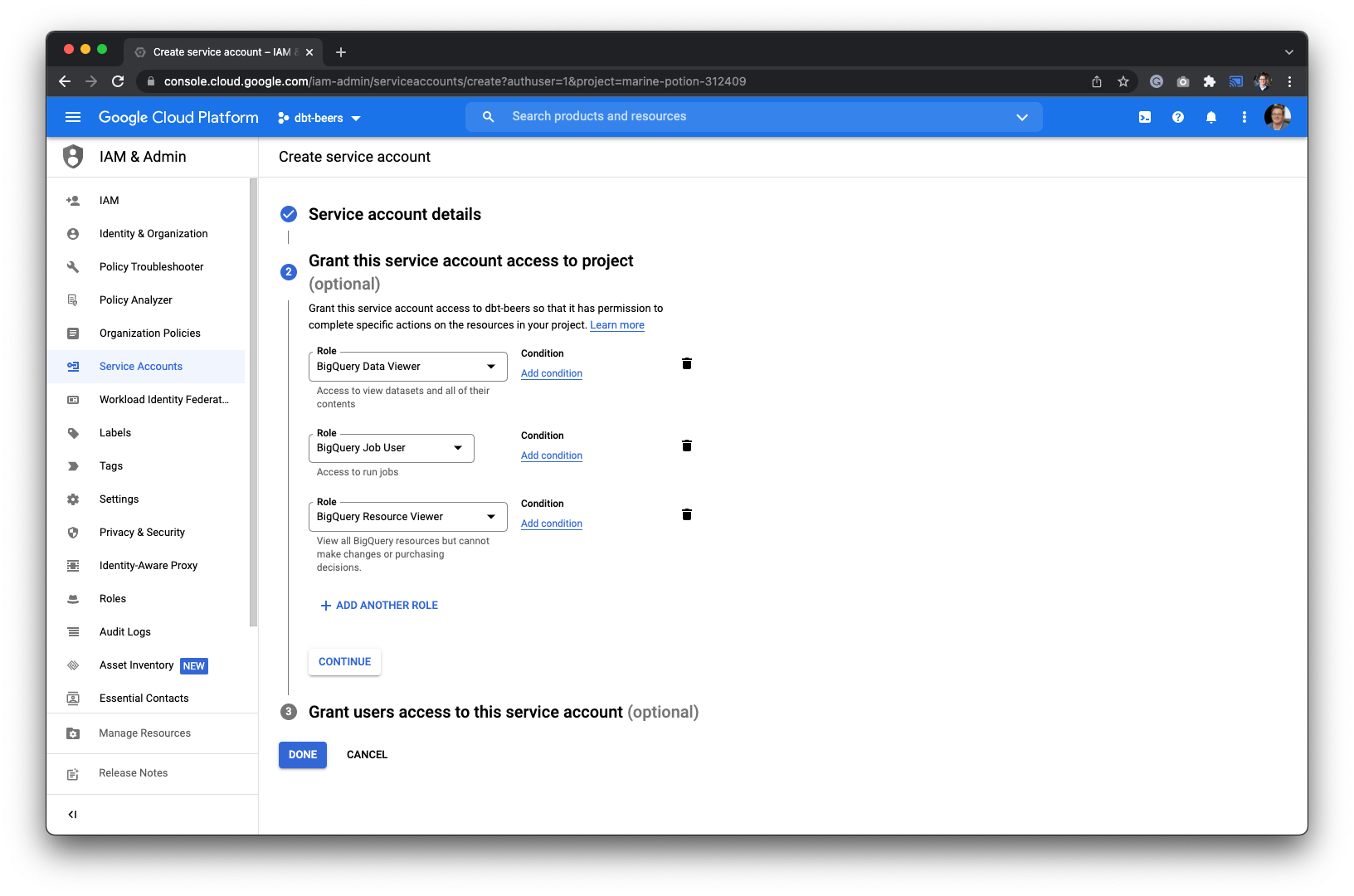
The Datafold service account requires the following roles and permissions:
* **BigQuery Data Viewer** for read access on all the datasets in the project.
* **BigQuery Job User** to run queries.
* **BigQuery Resource Viewer** to fetch the query logs for parsing lineage.
 ## Create a Temporary Dataset
Datafold utilizes a temporary dataset to materialize scratch work and keep data processing in your warehouse.
**Caution** - Make sure that the dataset lives in the same region as the rest of the data, otherwise, the dataset will not be found.
Let's navigate to BigQuery in the console and create a new dataset.
## Create a Temporary Dataset
Datafold utilizes a temporary dataset to materialize scratch work and keep data processing in your warehouse.
**Caution** - Make sure that the dataset lives in the same region as the rest of the data, otherwise, the dataset will not be found.
Let's navigate to BigQuery in the console and create a new dataset.
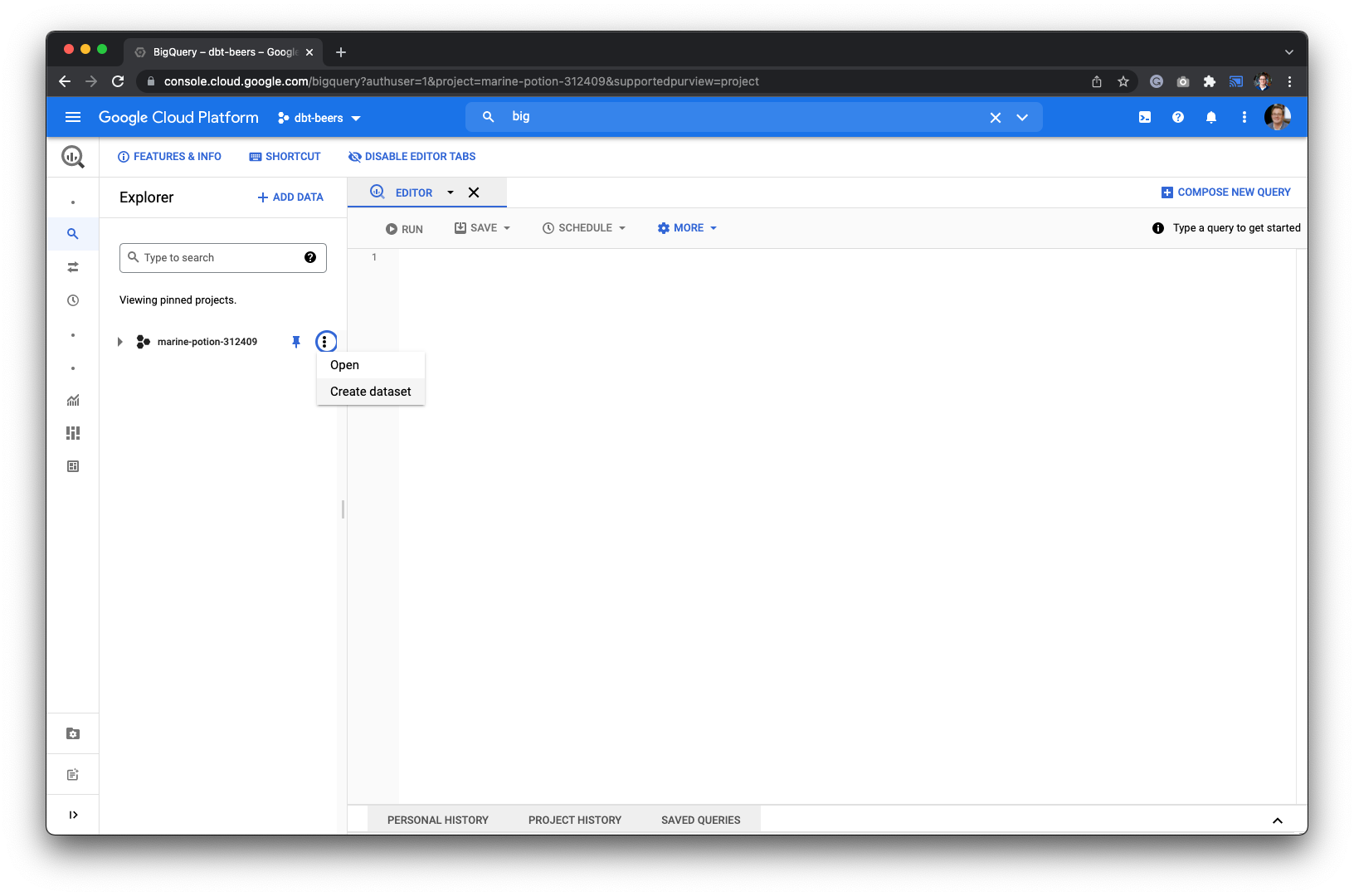 * Give the dataset a name like `datafold_tmp` and grant the Datafold service account the **BigQuery Data Editor** role.
## Generate a Service Account Key
Next, go back to the **IAM & Admin** page to generate a key for Datafold.
* Give the dataset a name like `datafold_tmp` and grant the Datafold service account the **BigQuery Data Editor** role.
## Generate a Service Account Key
Next, go back to the **IAM & Admin** page to generate a key for Datafold.
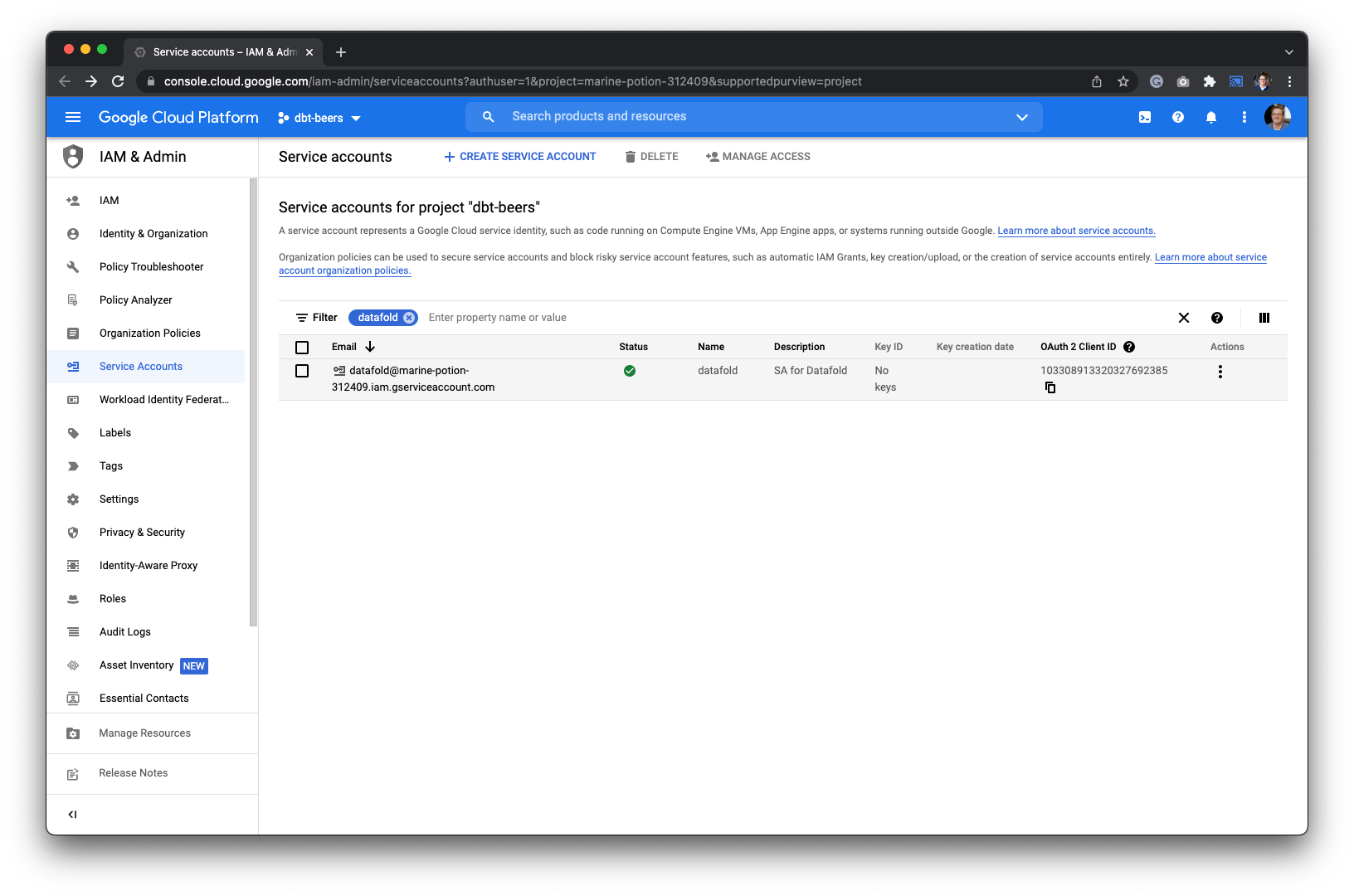 We recommend using the json formatted key. After creating the key, it will be saved on your local machine.
## Configure in Datafold
| Field Name | Description |
| --------------------------- | ------------------------------------------------------------------------------------------------------------------------------------------------------------------------------------------------------------------------------------------------------ |
| Name | A name given to the data connection within Datafold |
| Project ID | Your BigQuery project ID. It can be found in the URL of your Google Developers Console: [https://console.developers.google.com/apis/library?project=MY\\\_PROJECT\\\_ID](https://console.developers.google.com/apis/library?project=MY\\_PROJECT\\_ID) |
| JSON Key File | The key file generated in the [Generate a Service Account JSON key](/integrations/databases/bigquery#generate-a-service-account-key) step |
| Schema for temporary tables | The schema name that was created in [Create a temporary dataset](/integrations/databases/bigquery#create-a-temporary-dataset). It should be formatted as \.datafold\_tmp |
| Processing Location | Which processing zone your project uses |
Click **Create**. Your data connection is ready!
We recommend using the json formatted key. After creating the key, it will be saved on your local machine.
## Configure in Datafold
| Field Name | Description |
| --------------------------- | ------------------------------------------------------------------------------------------------------------------------------------------------------------------------------------------------------------------------------------------------------ |
| Name | A name given to the data connection within Datafold |
| Project ID | Your BigQuery project ID. It can be found in the URL of your Google Developers Console: [https://console.developers.google.com/apis/library?project=MY\\\_PROJECT\\\_ID](https://console.developers.google.com/apis/library?project=MY\\_PROJECT\\_ID) |
| JSON Key File | The key file generated in the [Generate a Service Account JSON key](/integrations/databases/bigquery#generate-a-service-account-key) step |
| Schema for temporary tables | The schema name that was created in [Create a temporary dataset](/integrations/databases/bigquery#create-a-temporary-dataset). It should be formatted as \.datafold\_tmp |
| Processing Location | Which processing zone your project uses |
Click **Create**. Your data connection is ready!