> ## Documentation Index
> Fetch the complete documentation index at: https://docs.datafold.com/llms.txt
> Use this file to discover all available pages before exploring further.
# Tableau
> Visualize downstream Tableau dependencies and understand how warehouse changes impact your BI layer.
## Overview
Our Tableau integration can help you visualise column-level lineage dependencies between warehouse tables and Tableau entities using [Data Explorer](/data-explorer/how-it-works).
**Note:** Lineage is only supported for Tableau assets in **Live** mode. Assets in **Extract** mode will not appear in Datafold lineage or dependency views.
Lineage from upstream data warehouses into Tableau is supported for the following data warehouse types:
* Snowflake
* Redshift
* Databricks
* BigQuery
Potentially impacted Tableau entity names are also automatically identified in the Datafold CI printout.
The following Tableau entities types will appear in Data Explorer, data diff results, and the Datafold CI printout:
* Tableau **Data Connections** and related fields;
* **Workbooks** and related fields;
* **Dashboards**.
To declutter the Datafold lineage, Datafold filters out Tableau Data Connections and Data Connections fields that have no downstream dependencies.
If you're interested in learning more about the Datafold integration, [please reach out to our team](https://www.datafold.com/booktime).
## Set up your Tableau instance
To connect Datafold to Tableau, you will require the following credentials from your Tableau site:
* Server URL,
* Site Name,
* Token Name,
* Token Value.
## If you are using Tableau Server
**Tableau Server** is an installation of Tableau that you are managing on your company's own infrastructure and domain. This is an alternative to using a Tableau Cloud subscription.
* Make sure that the [metadata-services](https://help.tableau.com/current/server/en-us/cli%5Fmaintenance%5Ftsm.htm#cat%5Fenable) are enabled by running the following command:
```
tsm maintenance metadata-services enable
```
* Ensure that your Tableau Server instance is accessible to Datafold. Please get in touch with our team to set this up.
## Obtaining server URL & Site Name
These can be found from URL of your Tableau home page. For instance, if your home page is:
```
https://eu-west-1a.online.tableau.com/#/site/mysupersite/home
```
Then:
* **Server URL** is `https://eu-west-1a.online.tableau.com` (the hostname with `https` in front)
* **Site Name** is `mysupersite` (the part directly after `#/site/` and until the next `/`)
## Obtaining Token Name & Token Value[](#obtaining-token-name--token-value "Direct link to Obtaining Token Name & Token Value")
Ensure that **Personal Access Tokens** are enabled on your Tableau site. For that, navigate to **Settings** and there, on the **General** tab, search for `Personal Access Tokens`. That feature needs to be enabled — not necessarily for everyone but for the user for whom we will be creating the token Datafold will use.
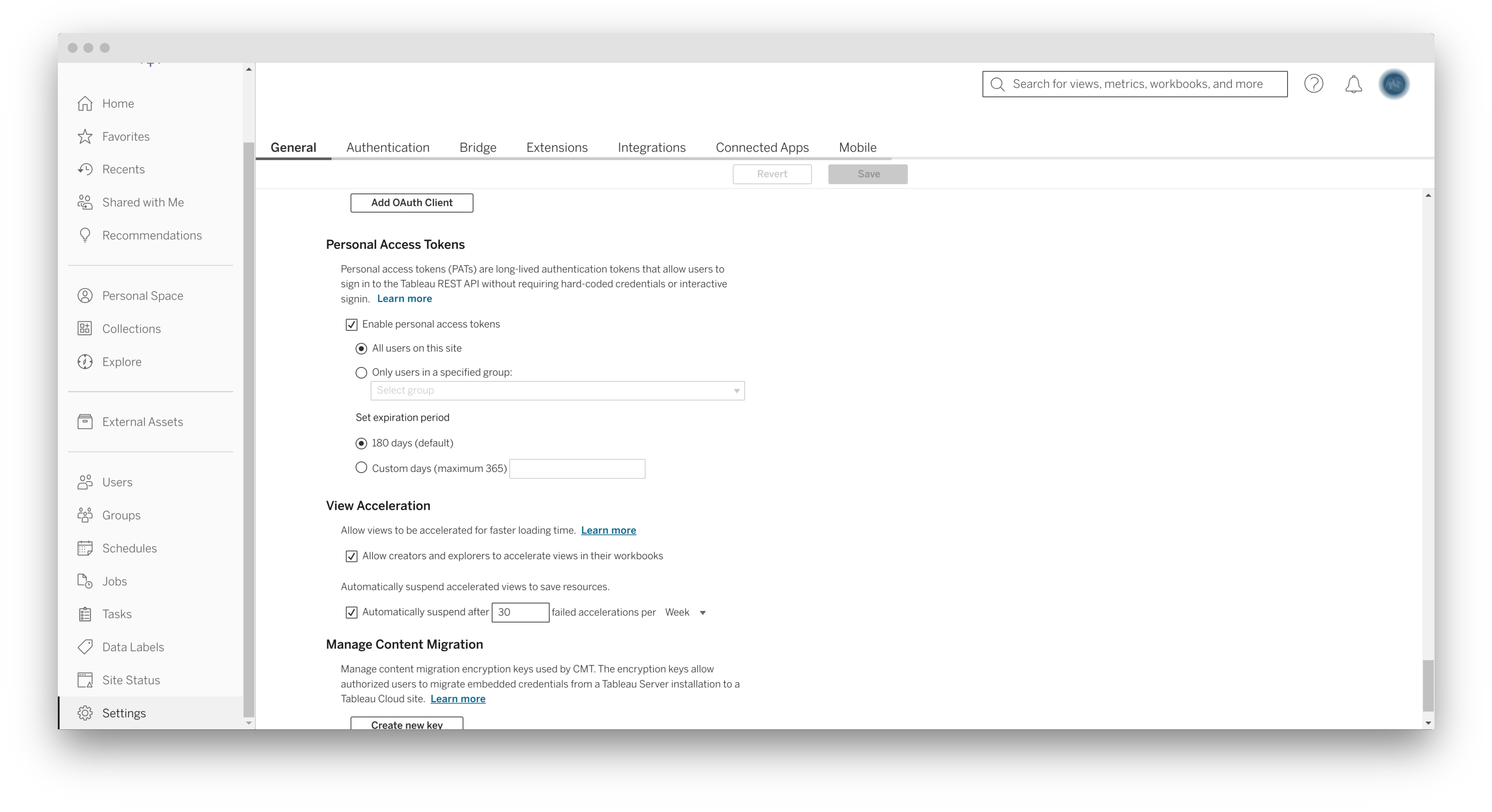 Now that Personal Access Tokens are enabled, click on your user’s avatar in the top right, choose **My Account Settings** in the pop-up menu, and then search for **Personal Access Tokens** on your settings page.
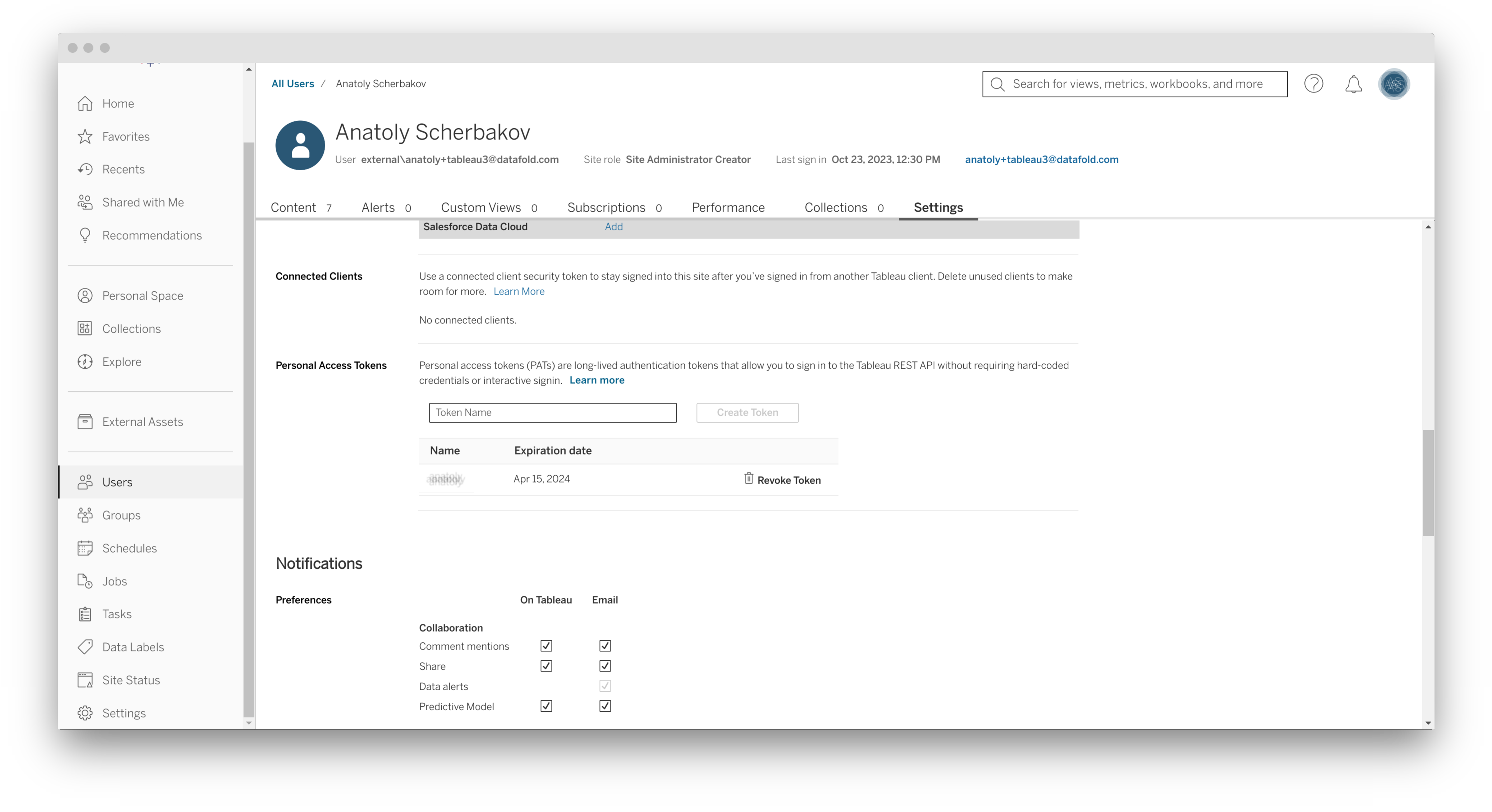 Input a desired name, say `datafold`, into the **Token Name** field, and click **Create Token**.
This will open a popup window. Click **Copy Secret** and save the copied value somewhere — you will use this when setting up Datafold. You can read more about personal access tokens on the official Tableau documentation [here](https://help.tableau.com/current/server/en-us/security%5Fpersonal%5Faccess%5Ftokens.htm).
## Create a Tableau Integration
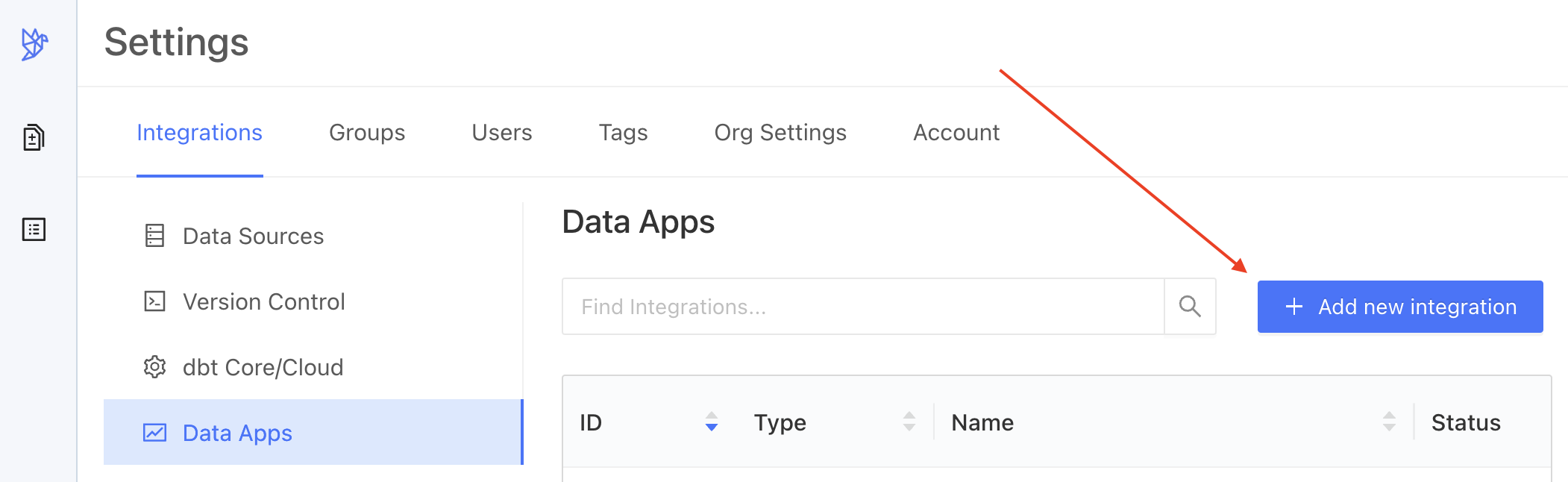
Navigate to ** Settings** → **Integrations** → **Data Apps**. Click ** Add new integration**.
Input a desired name, say `datafold`, into the **Token Name** field, and click **Create Token**.
This will open a popup window. Click **Copy Secret** and save the copied value somewhere — you will use this when setting up Datafold. You can read more about personal access tokens on the official Tableau documentation [here](https://help.tableau.com/current/server/en-us/security%5Fpersonal%5Faccess%5Ftokens.htm).
## Create a Tableau Integration
Navigate to ** Settings** → **Integrations** → **Data Apps**. Click ** Add new integration**.
 A click on **Tableau** will lead you to the integration creation screen. Fill in the fields with data we obtained earlier. See the screenshot for hints.
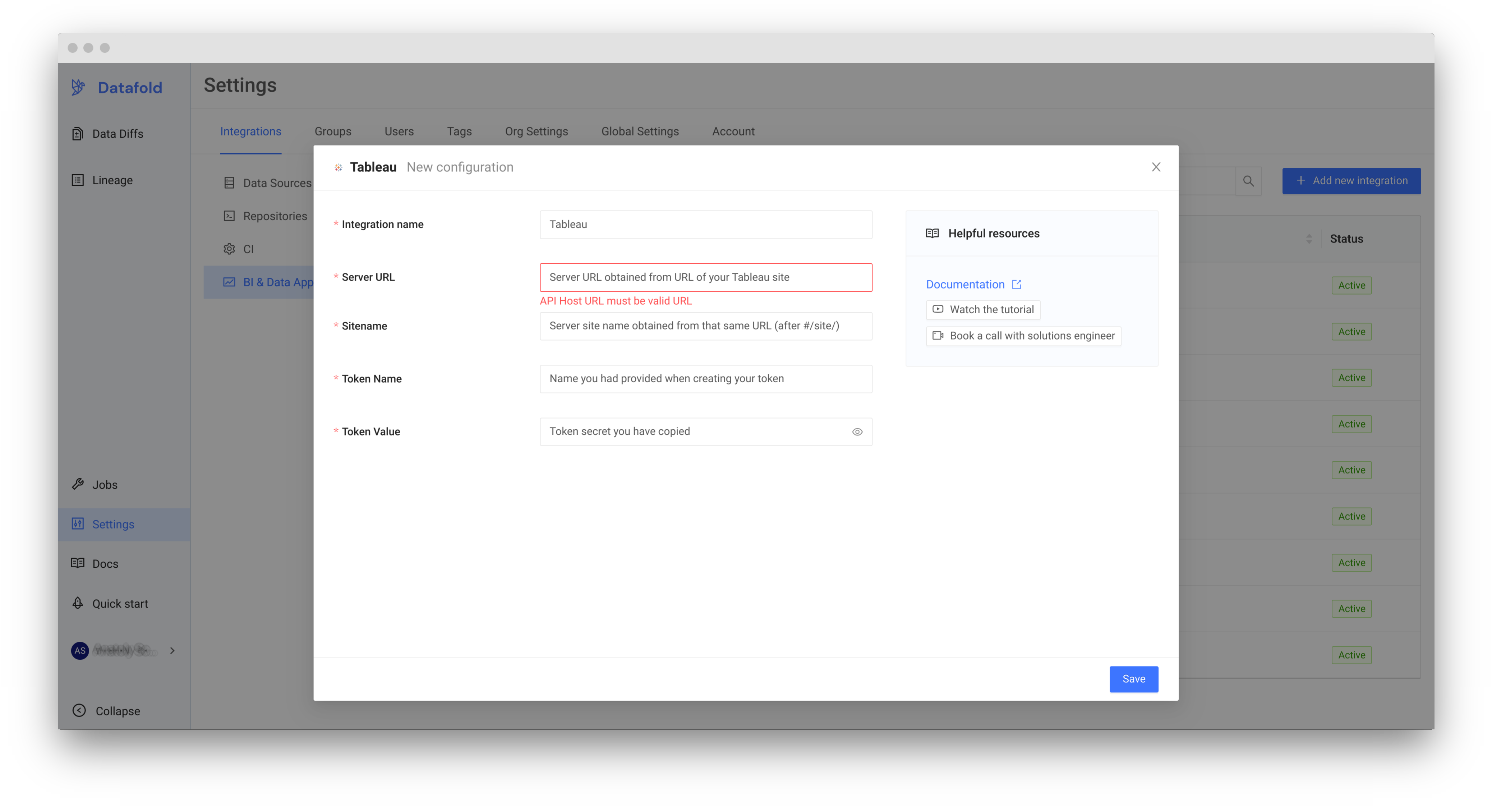 …and click **Save**.
## What's next?
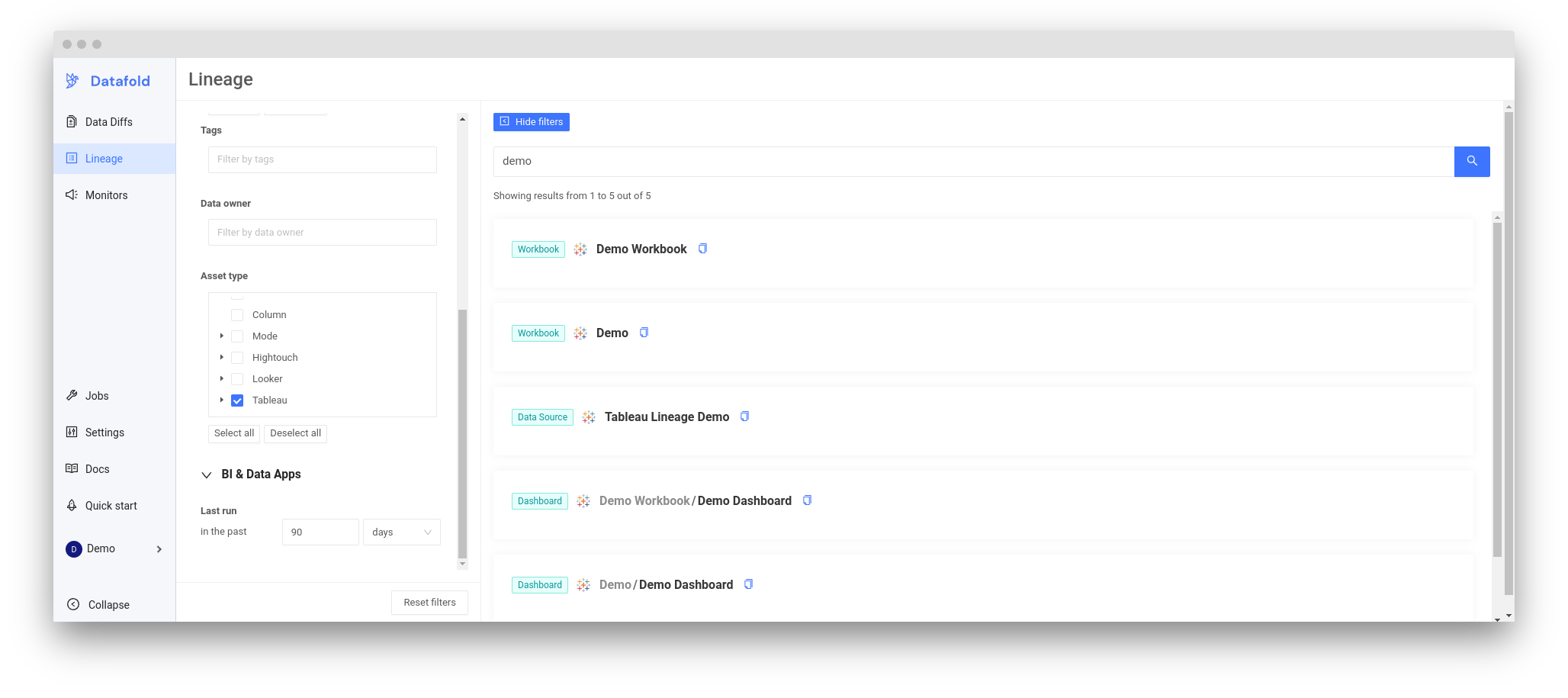
The initial sync might take some time; it depends on the number of objects at your Tableau site. Eventually, Tableau entities — **Data Connections**, **Workbooks**, and **Dashboards** should appear at your **Lineage** tab.
**TIP**
[Tracking Jobs](/integrations/bi-data-apps/tracking-jobs) explains how to find out when your data app integration is ready.
…and click **Save**.
## What's next?
The initial sync might take some time; it depends on the number of objects at your Tableau site. Eventually, Tableau entities — **Data Connections**, **Workbooks**, and **Dashboards** should appear at your **Lineage** tab.
**TIP**
[Tracking Jobs](/integrations/bi-data-apps/tracking-jobs) explains how to find out when your data app integration is ready.
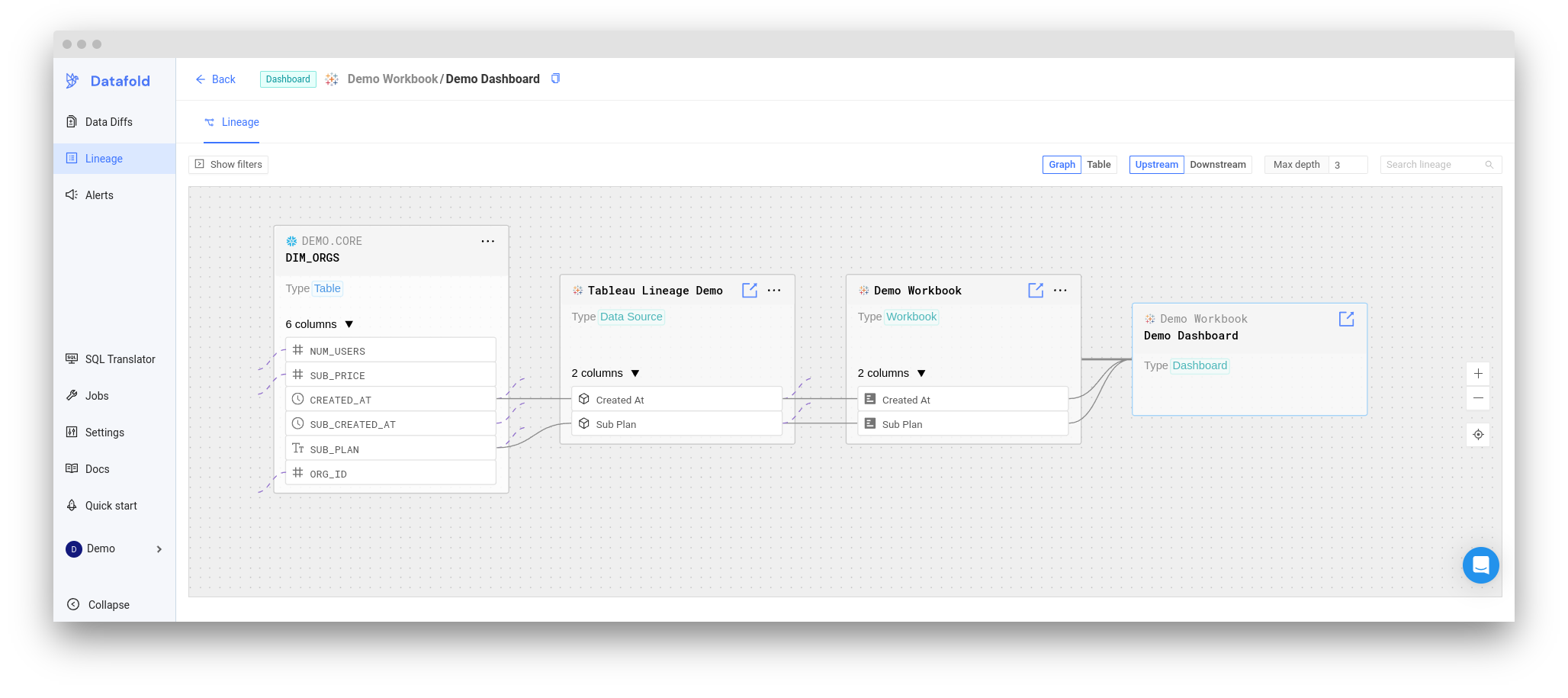
 Clicking on a Tableau entity will lead you to the Lineage screen:
 **TIP**
As you might have noticed on the screenshots above, Datafold does not display Tableau **Sheets**. Instead, we group, and deduplicate, all **Fields** of all **Sheets** within a **Workbook** and display them as **Fields** of the **Workbook**.
On the screenshot directly above, `Demo Workbook` might include one **Sheet** with `Created At` field and another with `Sub Plan` field, but for our purposes we unite all of those fields beneath the **Workbook** — which makes the Lineage graph much less cluttered, and much easier to browse
## FAQ
Lineage is only supported for Tableau assets in Live mode. Assets in Extract mode will not appear in Datafold lineage or dependency views.
Datafold retrieves Tableau metadata using the Tableau API, which may not immediately reflect recent changes due to internal caching. If your updates aren’t showing up in Datafold, give it a few hours — they should appear once Tableau refreshes its metadata.
**TIP**
As you might have noticed on the screenshots above, Datafold does not display Tableau **Sheets**. Instead, we group, and deduplicate, all **Fields** of all **Sheets** within a **Workbook** and display them as **Fields** of the **Workbook**.
On the screenshot directly above, `Demo Workbook` might include one **Sheet** with `Created At` field and another with `Sub Plan` field, but for our purposes we unite all of those fields beneath the **Workbook** — which makes the Lineage graph much less cluttered, and much easier to browse
## FAQ
Lineage is only supported for Tableau assets in Live mode. Assets in Extract mode will not appear in Datafold lineage or dependency views.
Datafold retrieves Tableau metadata using the Tableau API, which may not immediately reflect recent changes due to internal caching. If your updates aren’t showing up in Datafold, give it a few hours — they should appear once Tableau refreshes its metadata.