> ## Documentation Index
> Fetch the complete documentation index at: https://docs.datafold.com/llms.txt
> Use this file to discover all available pages before exploring further.
# Mode
## Obtain credentials from Mode
**INFO**
To complete this integration, your **Mode** account must be a part of a [Mode Business Workspace](https://mode.com/compare-plans) in order to generate an API Token.
**INFO**
You need to have **Admin** privileges in your Mode Workspace to be able to create an API Token.
In **Mode**, navigate to **Workspace Settings** → **Privacy & Security** → **API**.
Click the icon, and choose **Create new token**.
 Take note of:
* Token Name,
* Token Password,
* And the URL of the page that lists the tokens. It should look like this:
[https://app.mode.com/organizations/\{workspace}/api\_keys](https://app.mode.com/organizations/\{workspace}/api_keys)
Take note of `{workspace}` part, we will need it when configuring Datafold.
## Configure Datafold
Navigate to **Settings** → **Integrations** → **BI & Data Apps**.
Take note of:
* Token Name,
* Token Password,
* And the URL of the page that lists the tokens. It should look like this:
[https://app.mode.com/organizations/\{workspace}/api\_keys](https://app.mode.com/organizations/\{workspace}/api_keys)
Take note of `{workspace}` part, we will need it when configuring Datafold.
## Configure Datafold
Navigate to **Settings** → **Integrations** → **BI & Data Apps**.
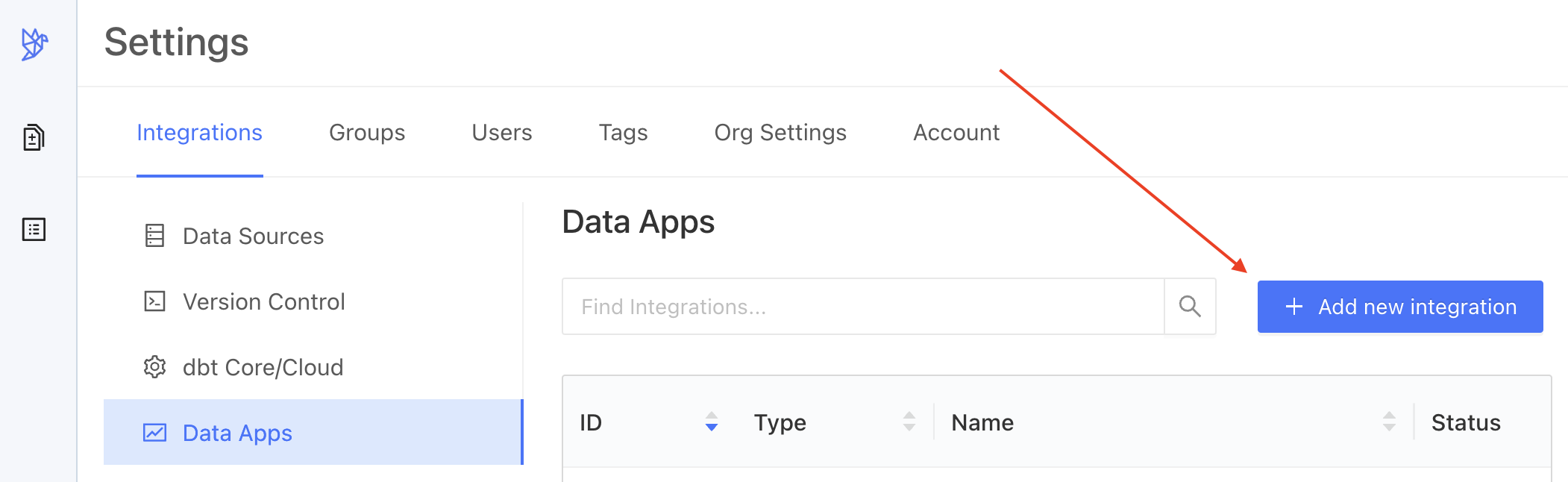 Choose **Mode** Integration to add.
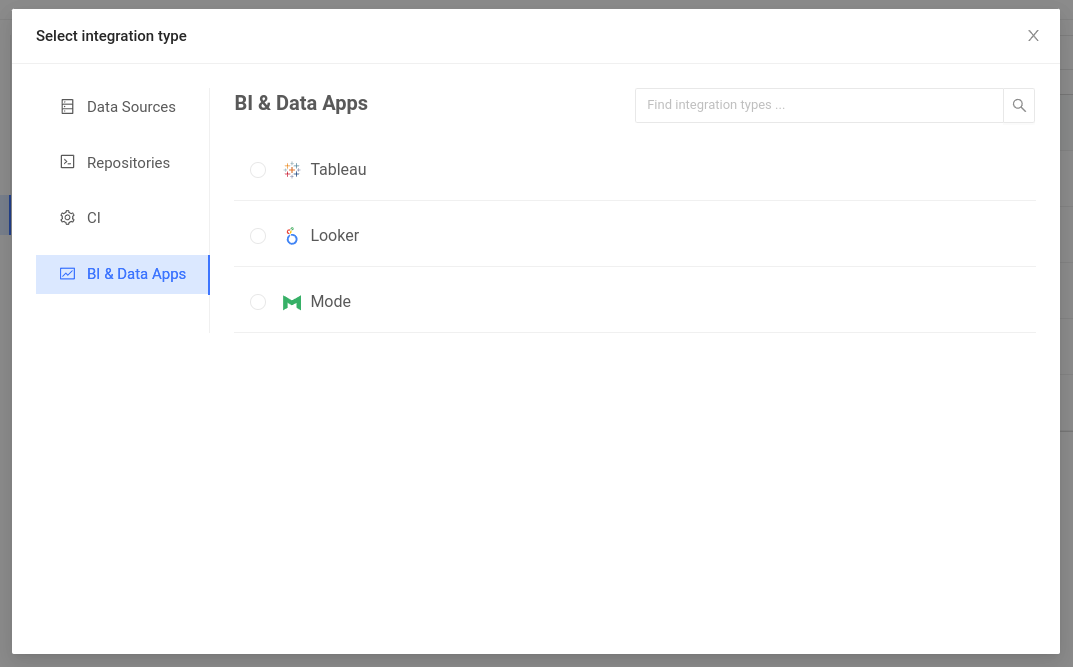 This will bring up **Mode** integration parameters.
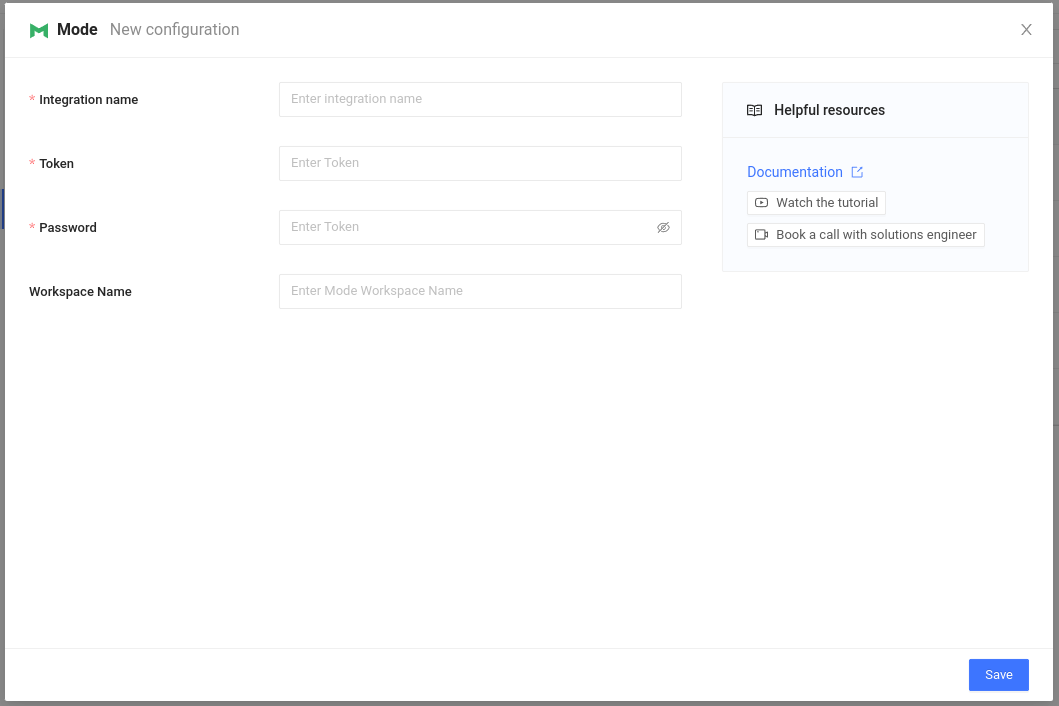 Complete the configuration by specifying the following fields:
| Field Name | Description |
| ---------------- | ----------------------------------------------------------------------- |
| Integration name | An identifier used in Datafold to identify this Data App configuration. |
| Token | API token, as generated above. |
| Password | API token password, as generated above. |
| Workspace | Workspace name obtained from your workspace URL. |
**INFO**
**Workspace Name** field is not marked as required on this screen. That's for backwards compatibility: the legacy type of Mode API token, known as **Personal Token**, does not require that parameter. However, such tokens can no longer be created, so we're no longer providing instructions for them.
When completed, click **Save**.
Datafold will try to connect to Mode and, if any issues with the connection arise you will be alerted.
Datafold will start to sync your reports. It can take some time to fetch all the reports, depending on how many of them there are.
**TIP**
[Tracking Jobs](/integrations/bi-data-apps/tracking-jobs) explains how to find out when your data app integration is ready.
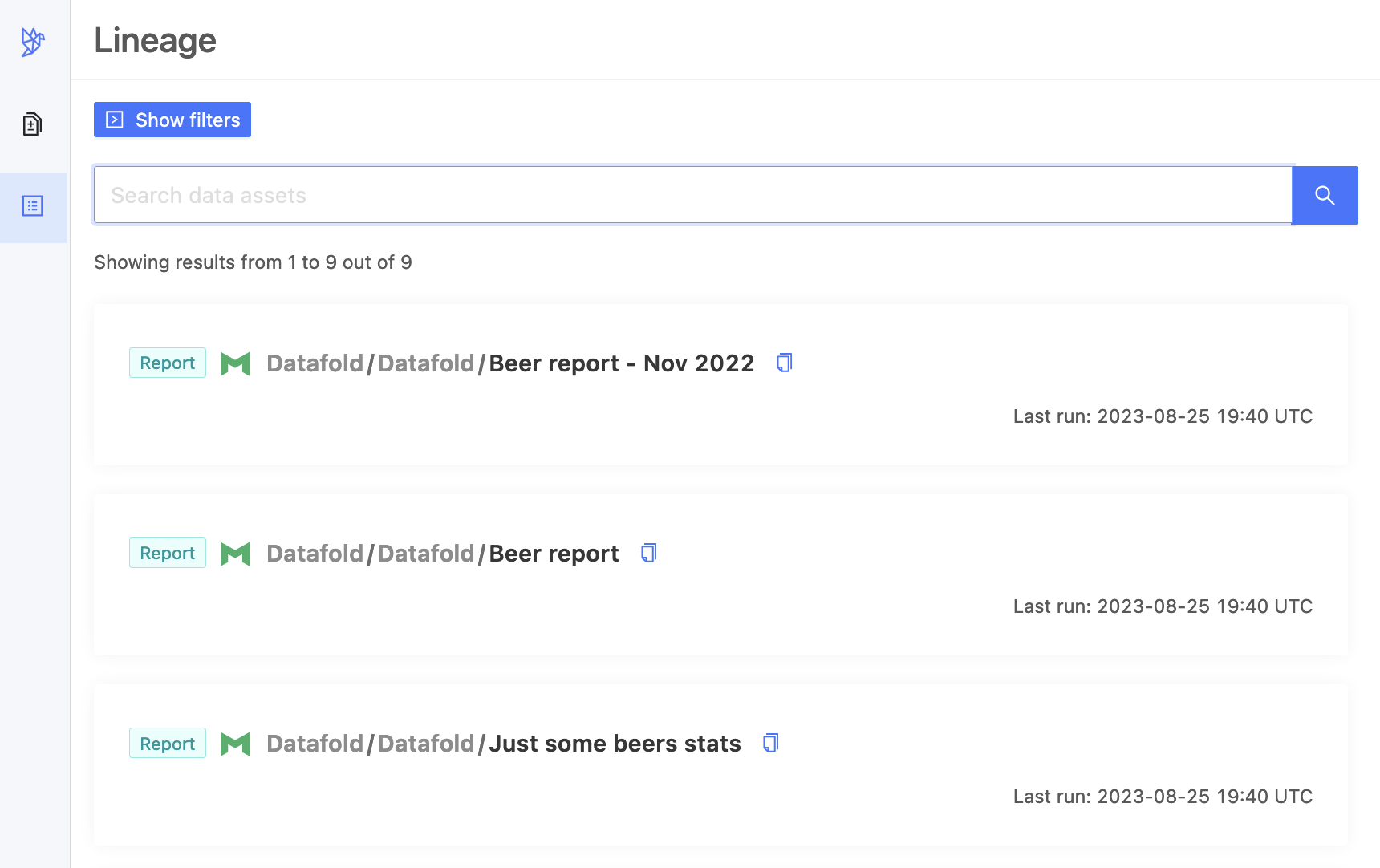
Now that Mode sync has completed — you can browse your Mode reports!
Complete the configuration by specifying the following fields:
| Field Name | Description |
| ---------------- | ----------------------------------------------------------------------- |
| Integration name | An identifier used in Datafold to identify this Data App configuration. |
| Token | API token, as generated above. |
| Password | API token password, as generated above. |
| Workspace | Workspace name obtained from your workspace URL. |
**INFO**
**Workspace Name** field is not marked as required on this screen. That's for backwards compatibility: the legacy type of Mode API token, known as **Personal Token**, does not require that parameter. However, such tokens can no longer be created, so we're no longer providing instructions for them.
When completed, click **Save**.
Datafold will try to connect to Mode and, if any issues with the connection arise you will be alerted.
Datafold will start to sync your reports. It can take some time to fetch all the reports, depending on how many of them there are.
**TIP**
[Tracking Jobs](/integrations/bi-data-apps/tracking-jobs) explains how to find out when your data app integration is ready.
Now that Mode sync has completed — you can browse your Mode reports!