> ## Documentation Index
> Fetch the complete documentation index at: https://docs.datafold.com/llms.txt
> Use this file to discover all available pages before exploring further.
# Hightouch
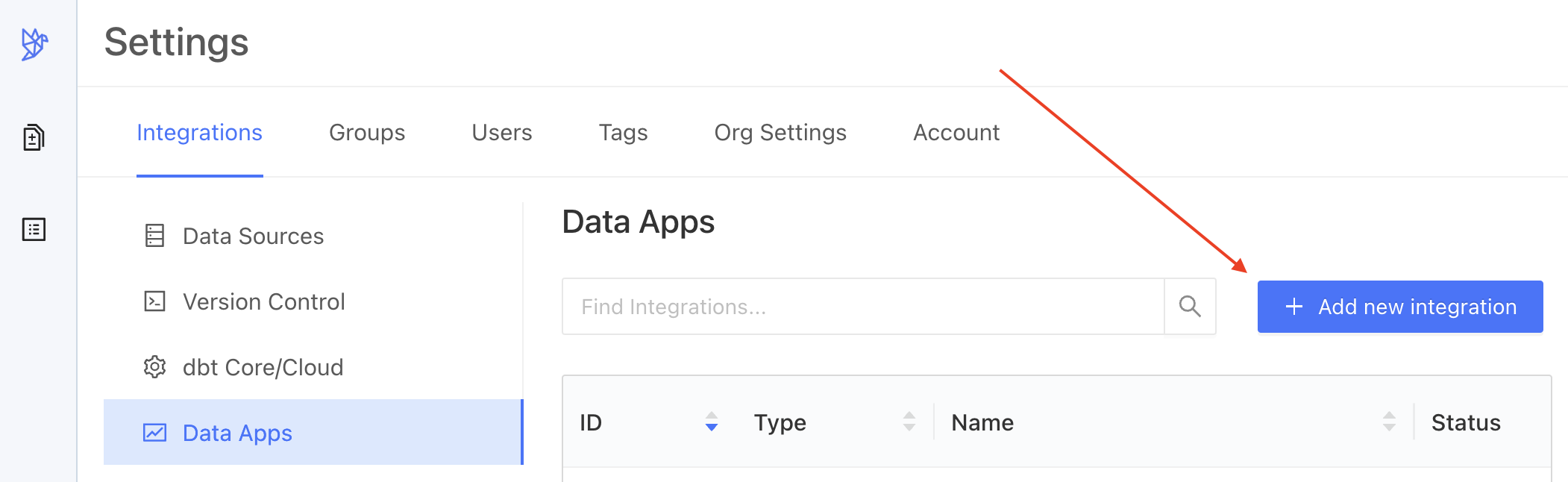
> Navigate to Settings > Integrations > Data Apps and add a Hightouch Integration.
## Create a Hightouch Integration
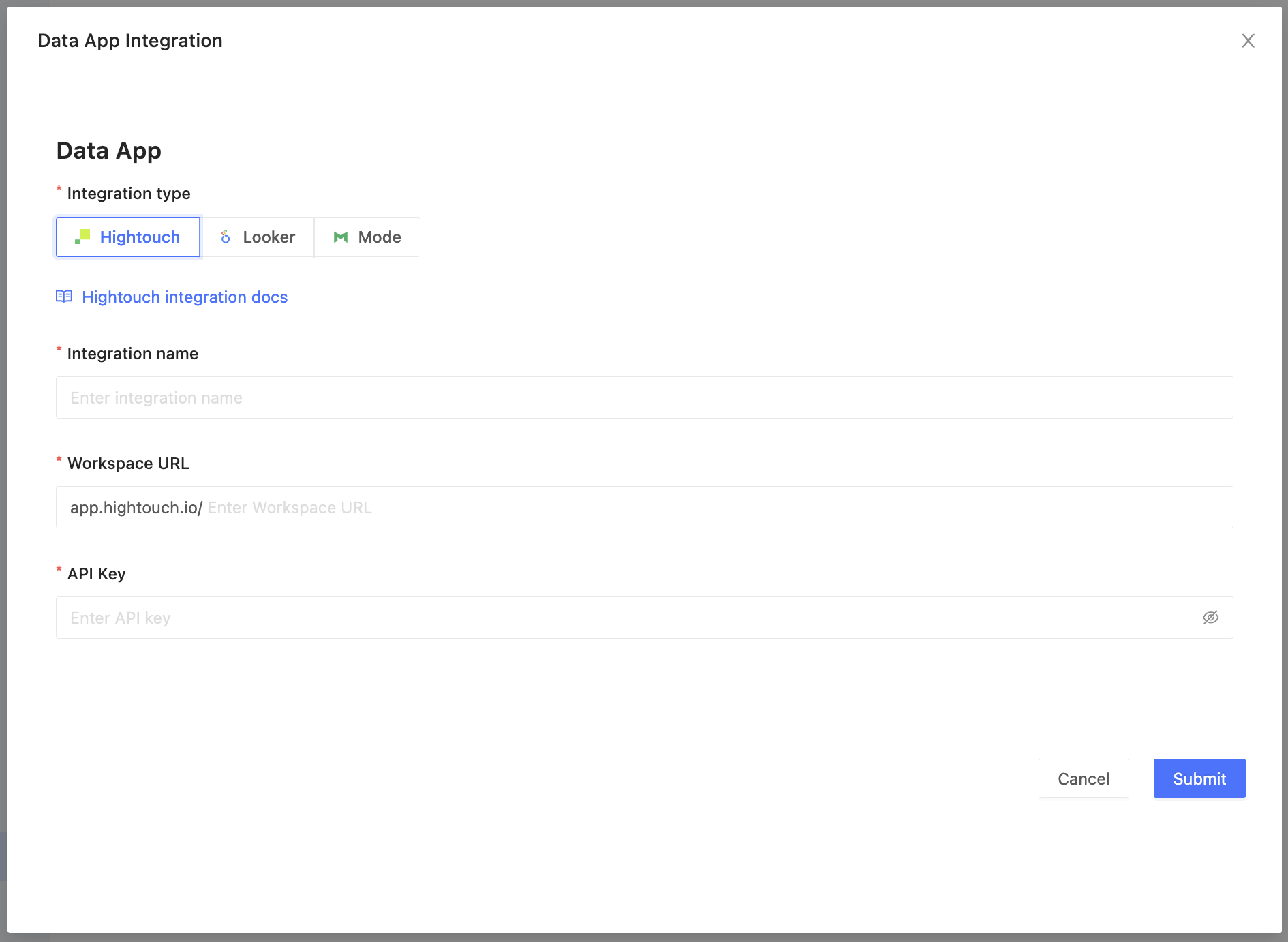 Complete the configuration by specifying the following fields:
| Field Name | Description |
| ----------------------- | ---------------------------------------------------------------------------------------------------------------------------------------------------------------------------------------------------------------------------------------------------------------------------------------------------------------------- |
| Integration name | An identifier used in Datafold to identify this Data App configuration. |
| Workspace URL | Then, grab your workspace URL, by navigating to **Settings** → **Workspace** tab → **Workspace slug** or by finding the workspace name in the search bar ([https://app.hightouch.io/](https://app.hightouch.io/) \). |
| API Key | Log into your [Hightouch account](https://app.hightouch.com/login) and navigate to **Settings** → **API keys** tab → **Add API key** to generate a new, unique API key. Your API key will appear only once, so please copy and save it to your password manager for further use. |
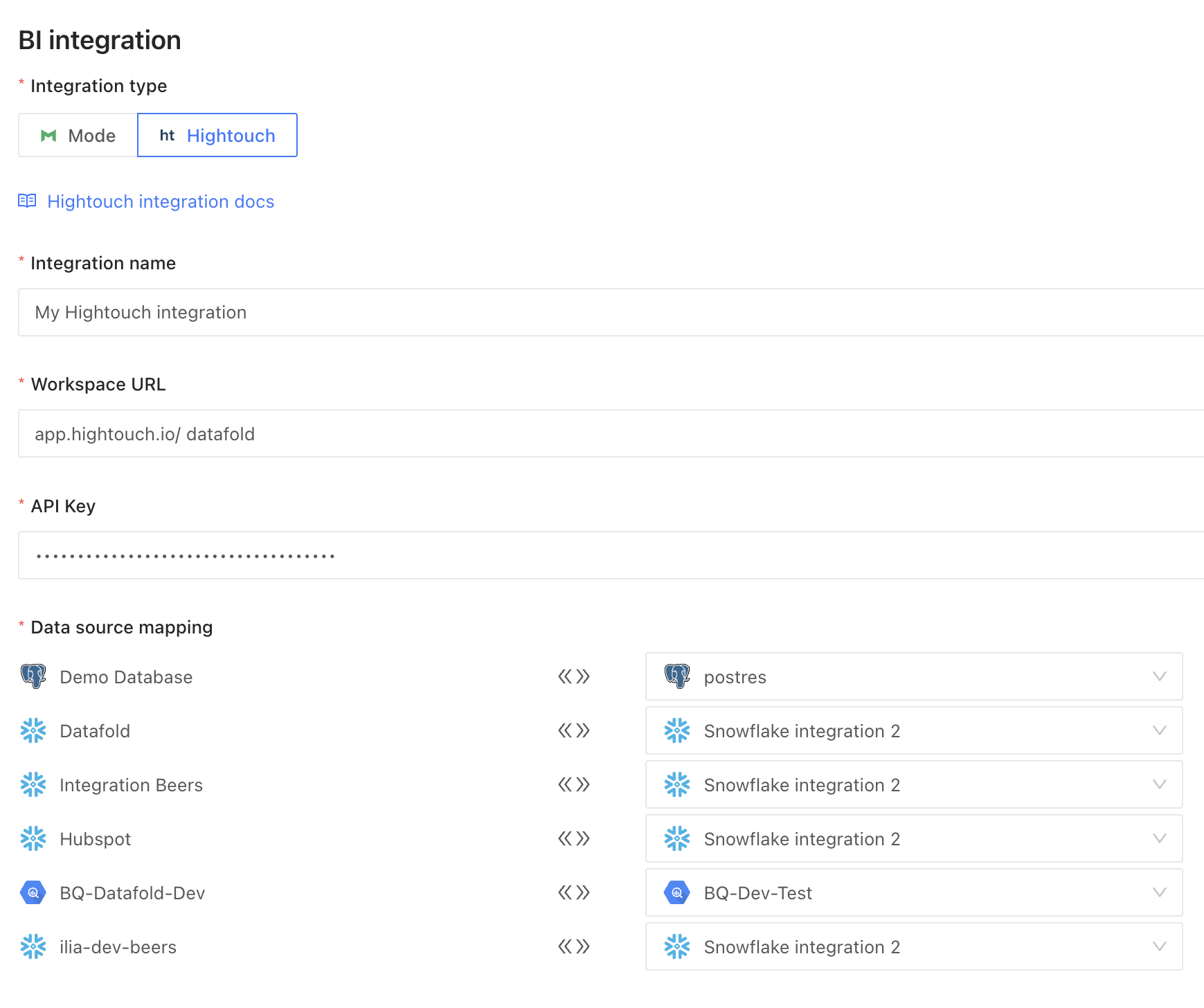
| Data connection mapping | When the correct credentials are entered we will begin to populate data connections in Hightouch (on the left side) that will need to be mapped to data connections configured in Datafold (on the right side). See image below. |
Complete the configuration by specifying the following fields:
| Field Name | Description |
| ----------------------- | ---------------------------------------------------------------------------------------------------------------------------------------------------------------------------------------------------------------------------------------------------------------------------------------------------------------------- |
| Integration name | An identifier used in Datafold to identify this Data App configuration. |
| Workspace URL | Then, grab your workspace URL, by navigating to **Settings** → **Workspace** tab → **Workspace slug** or by finding the workspace name in the search bar ([https://app.hightouch.io/](https://app.hightouch.io/) \). |
| API Key | Log into your [Hightouch account](https://app.hightouch.com/login) and navigate to **Settings** → **API keys** tab → **Add API key** to generate a new, unique API key. Your API key will appear only once, so please copy and save it to your password manager for further use. |
| Data connection mapping | When the correct credentials are entered we will begin to populate data connections in Hightouch (on the left side) that will need to be mapped to data connections configured in Datafold (on the right side). See image below. |
 When completed, click **Submit**.
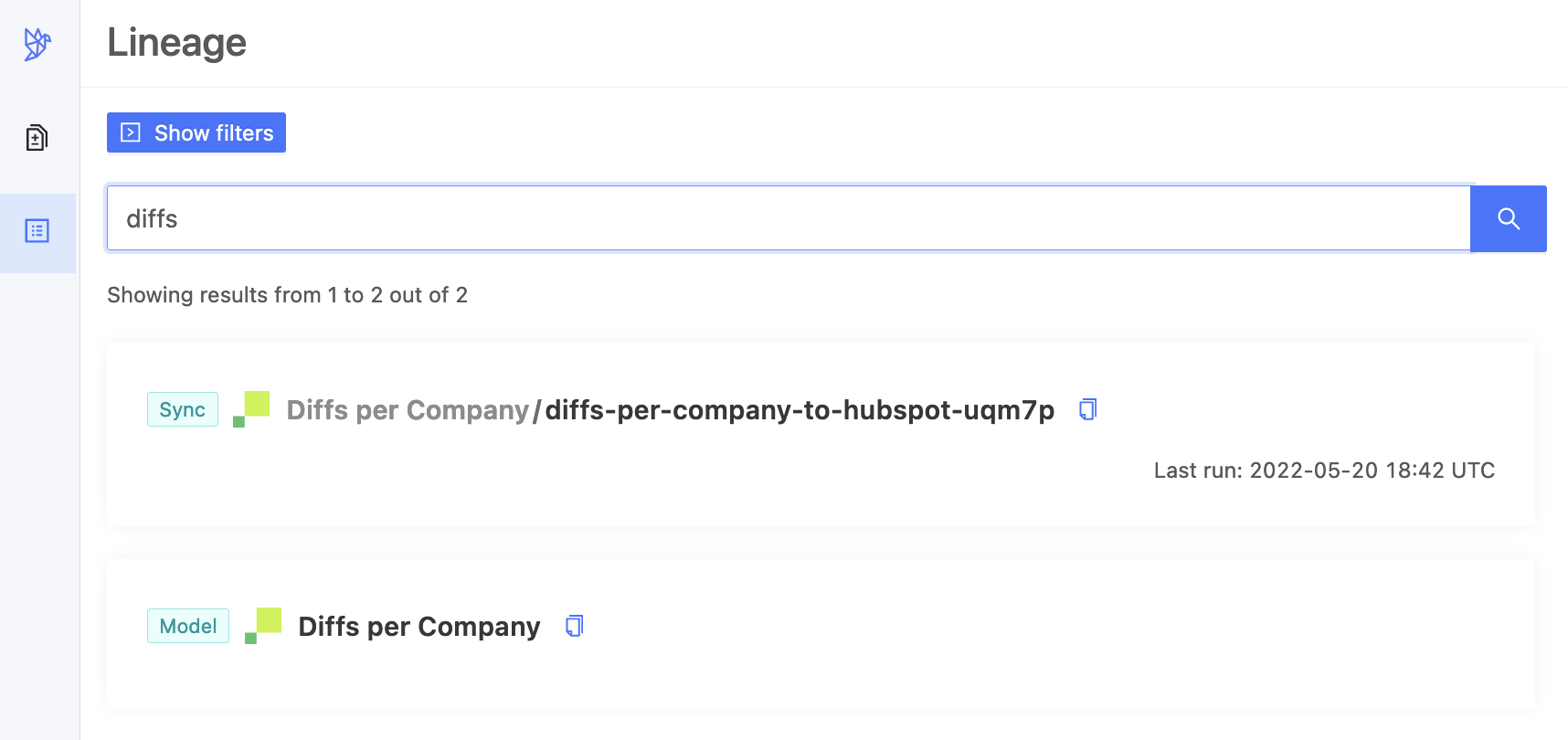
It may take some time to sync all the Hightouch entities to Datafold and for Data Explorer to populate. When completed, your Hightouch models and sync will appear in Data Explorer as search results.
When completed, click **Submit**.
It may take some time to sync all the Hightouch entities to Datafold and for Data Explorer to populate. When completed, your Hightouch models and sync will appear in Data Explorer as search results.
 **TIP**
[Tracking Jobs](/integrations/bi-data-apps/tracking-jobs) explains how to find out when your data app integration is ready.
**TIP**
[Tracking Jobs](/integrations/bi-data-apps/tracking-jobs) explains how to find out when your data app integration is ready.